Download Ascent agent and Assets
You can export or download your Ascent agent (AI agent) and associated assets.
Export Ascent agent
Ascent agent is a full-fledged AI agent that often performs non-trivial tasks, such as advising, counseling, and coaching. When you download your agent, you will retain all its design, including the main agentic workflow and all configurations. If you have customized your agent, your custom AI agent contains much intelligence and content (e.g., custom agentic workflows) that are unique to you.
You can export your Ascent agent in two ways:
Inside the agent
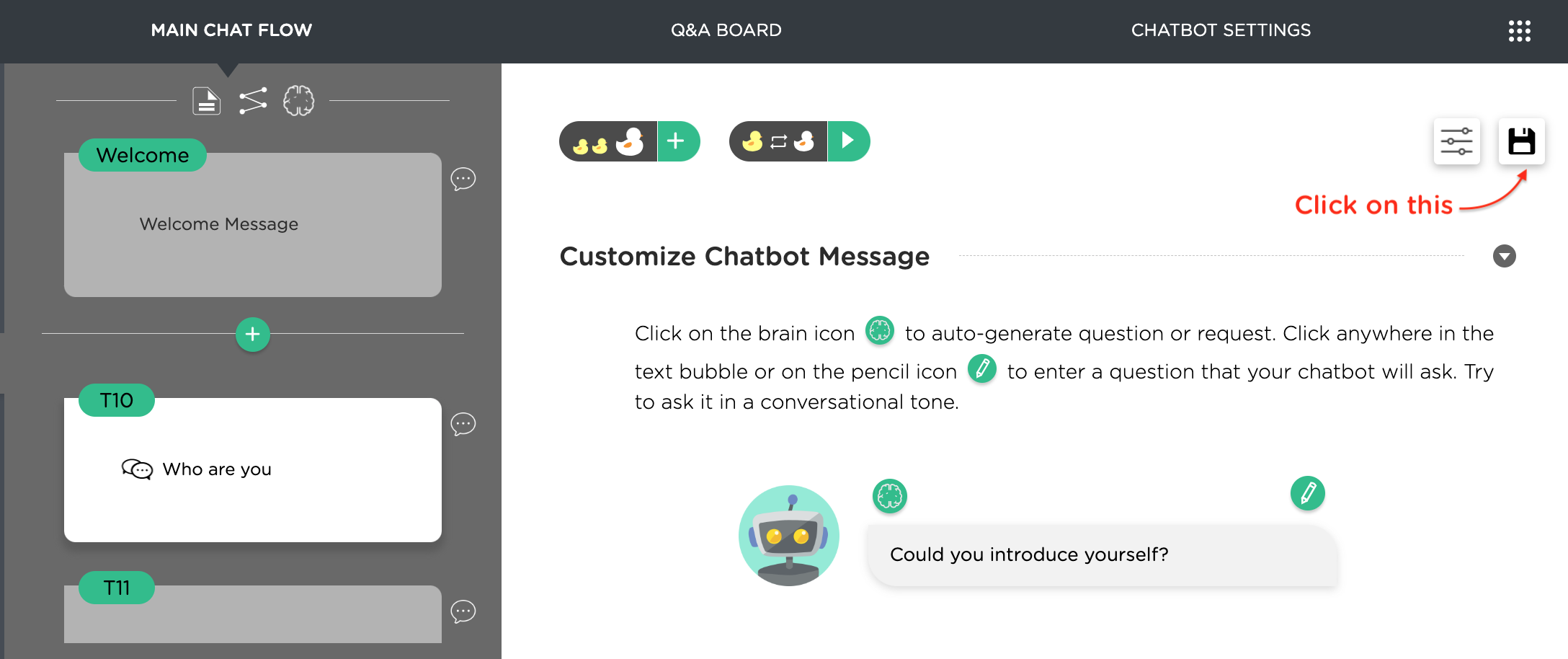
If you are inside this agent, click on the "floppy disk" icon to download it - this will result in a .juji file. In case the Ascent platform continues, you can simply upload this file to restore your AI agent. See the screenshot below.
Outside the agent
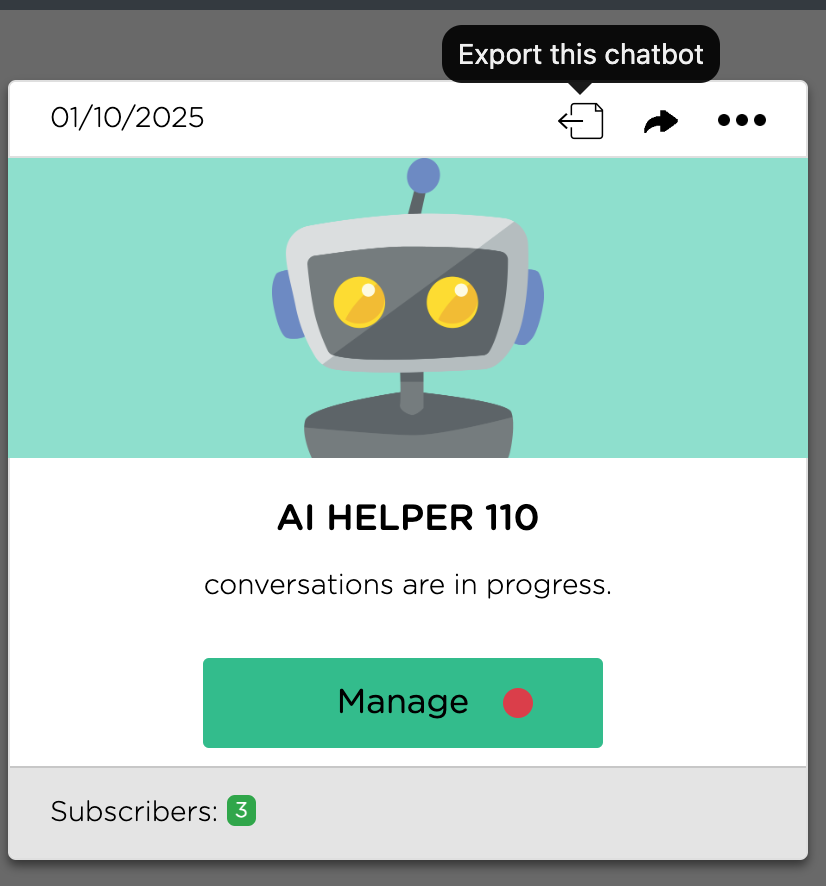
If you are outside of the agent, click on the "Export" button as shown below.
Download Ascent agent Knowledgebase
Your Ascent agent is often associated with a custom knowledge base, also known as the Q&A board. Such information can also be downloaded for safe keep. The downloaded content is in a readable format (e.g., in CSV) so you could potentially import the content into another system if needed.
Go inside your agent and follow the steps below:
- Click on "DESIGN"
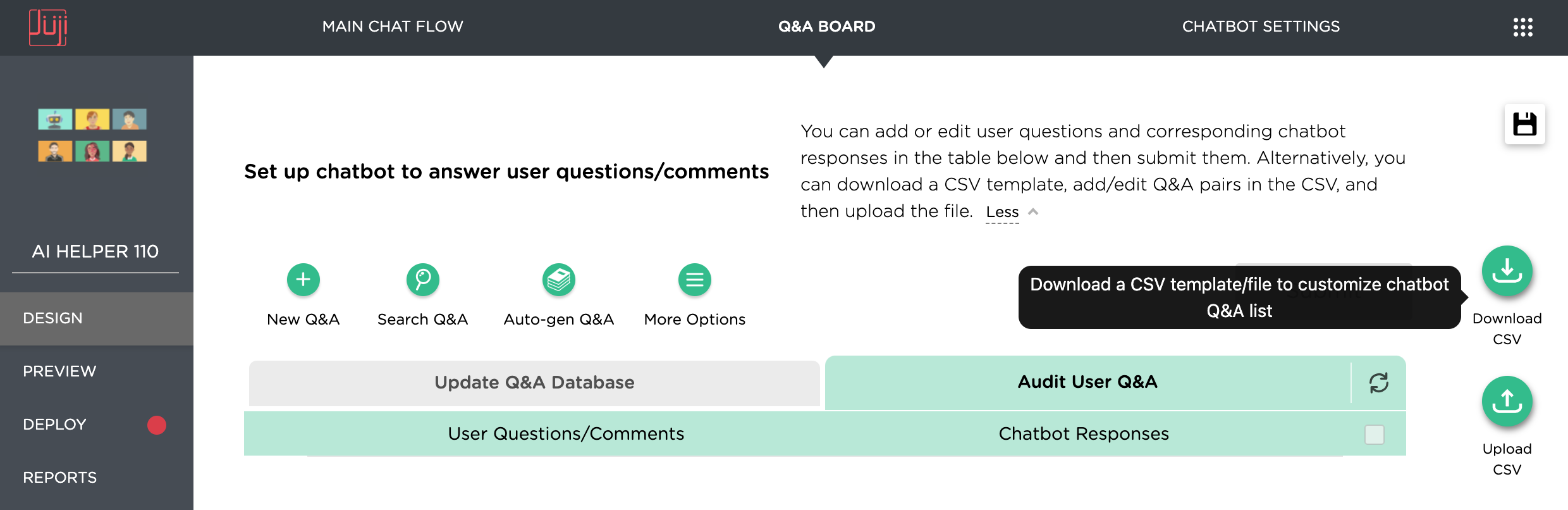
- Click on "Q&A Board" located on the top menu bar
- Click on "Download CSV" as shown below
- When the download pop-up window shows up, we strongly suggest that you select ALL to download everything including unanswered questions.
Download Ascent agent Audience Info
If your agent has been running for a while, you might have a number of users. Although the users interacted with your agent anonymously, their chat transcripts may help you improve your agent later. So we also suggest that you download your audience information for safe keep.
Go inside your agent and then follow the steps:
- Click on "Reports"
- Click on "Audience" tab - which is located at the top menu bar
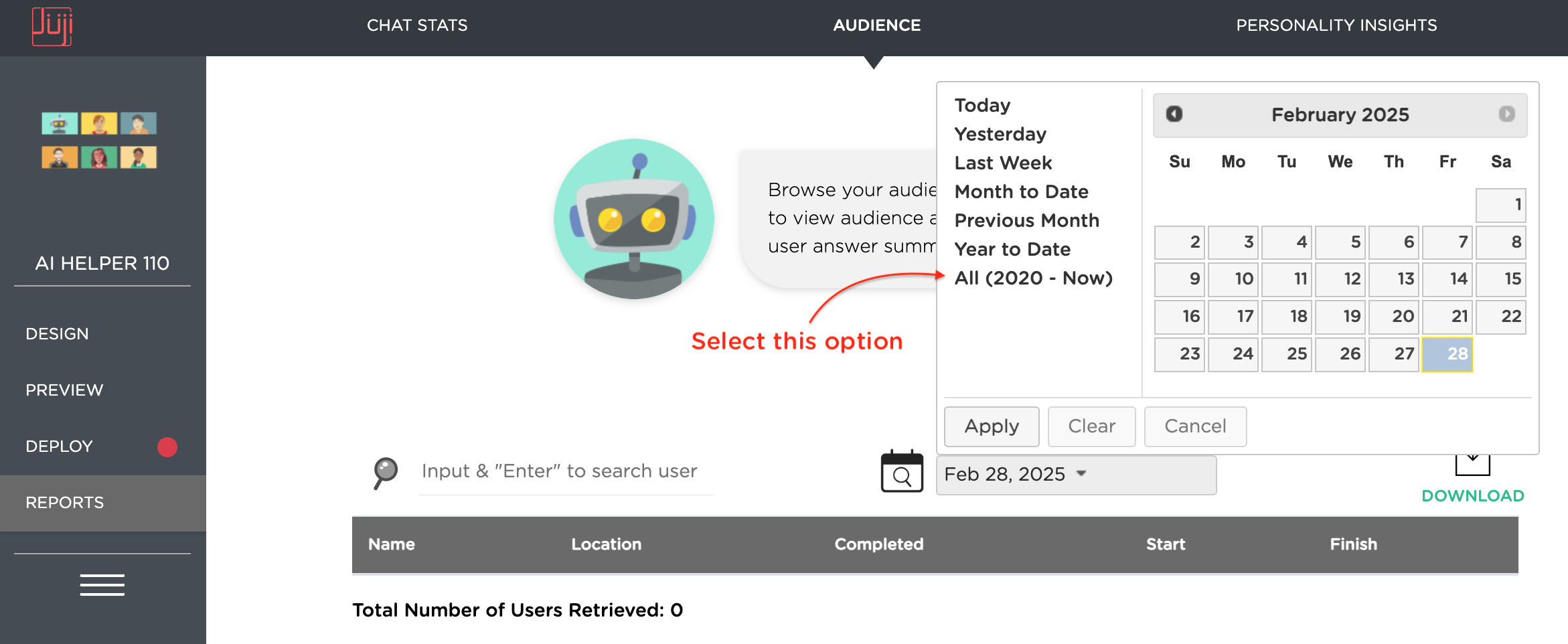
- Click on the calendar icon. Then select the option "All (2020 - Now)" as shown below. This may take a while if you have many users in the past.
- Click on the "Download" button. In the download pop-up window, again, we suggest that you download CSV as well as the full transcripts for future potential use.