Ascent Studio Reference Guide
Ascent Studio provides an intuitive graphical user interface (GUI) for non-IT professionals or anyone to rapidly create, customize, test, deploy, and manage AI agents with #NOCODE or IT support. Born with advanced human soft skills (cognitive intelligence), such an agent can automate human-human interactions at scale and accomplish non-trivial tasks empathetically and responsibly.
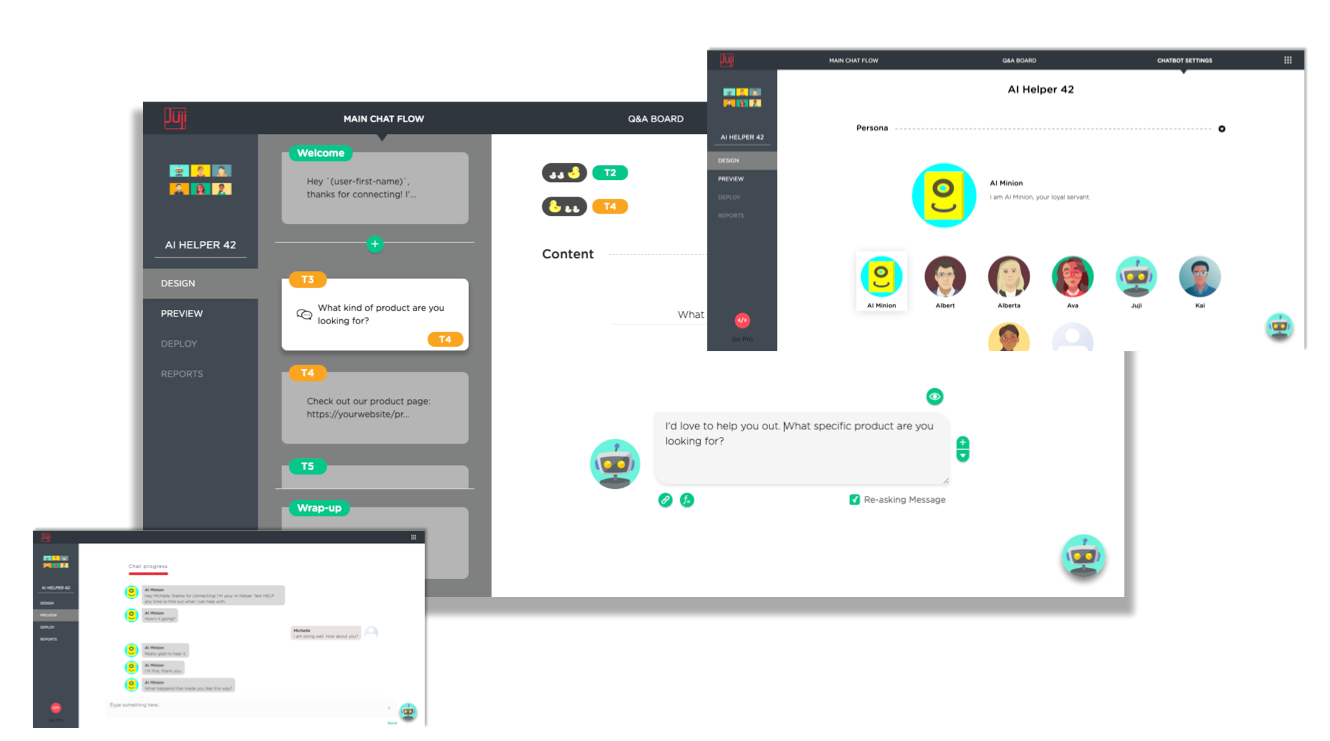
Get Started
To get started on Ascent Studio, you can sign up to create an account or directly log in if you already have an account.
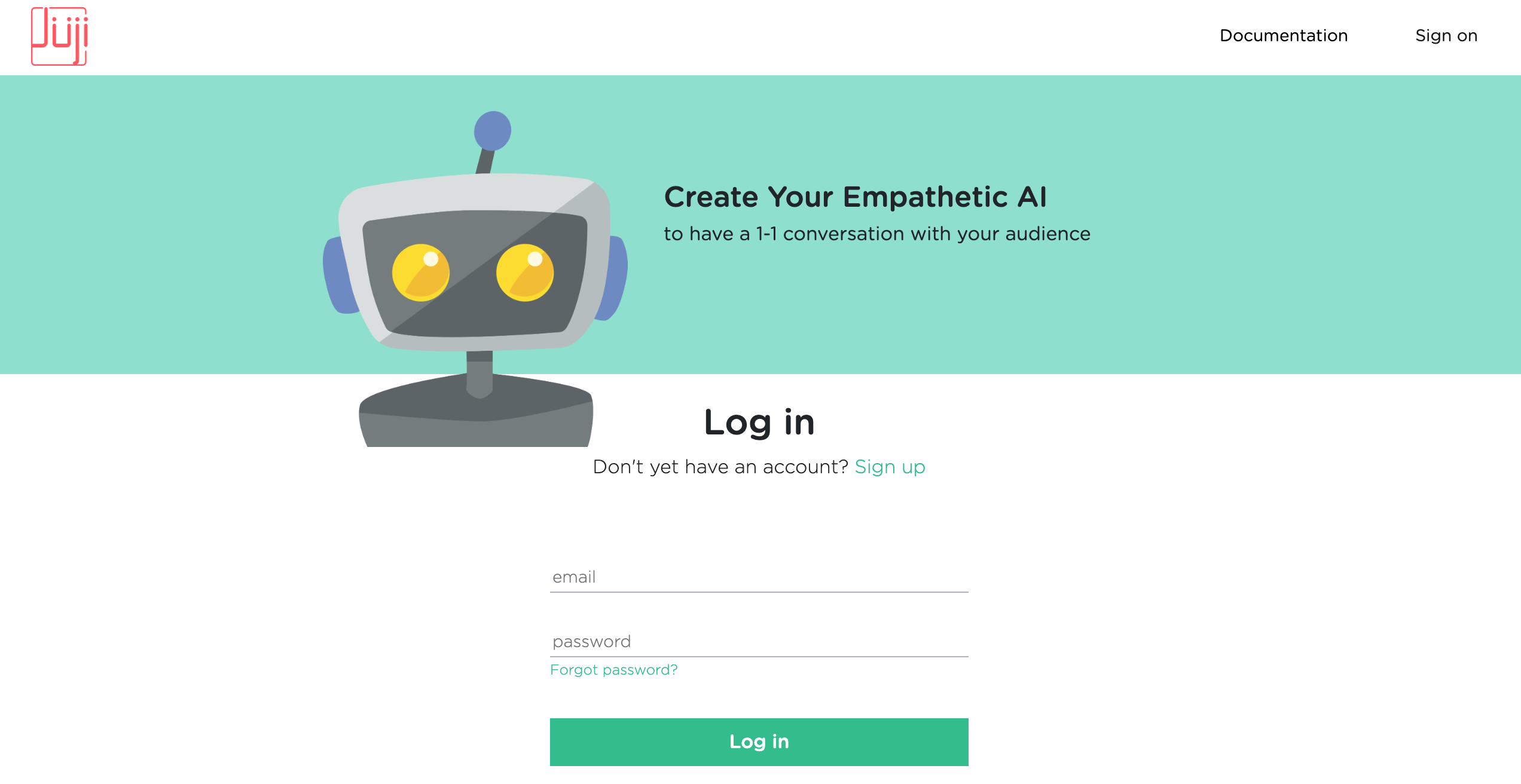
If you have an account but don't remember your password, you can always click on the phrase "Forget password?" right below the "password" input field to reset your password.
Your Home Screen
Create an agent
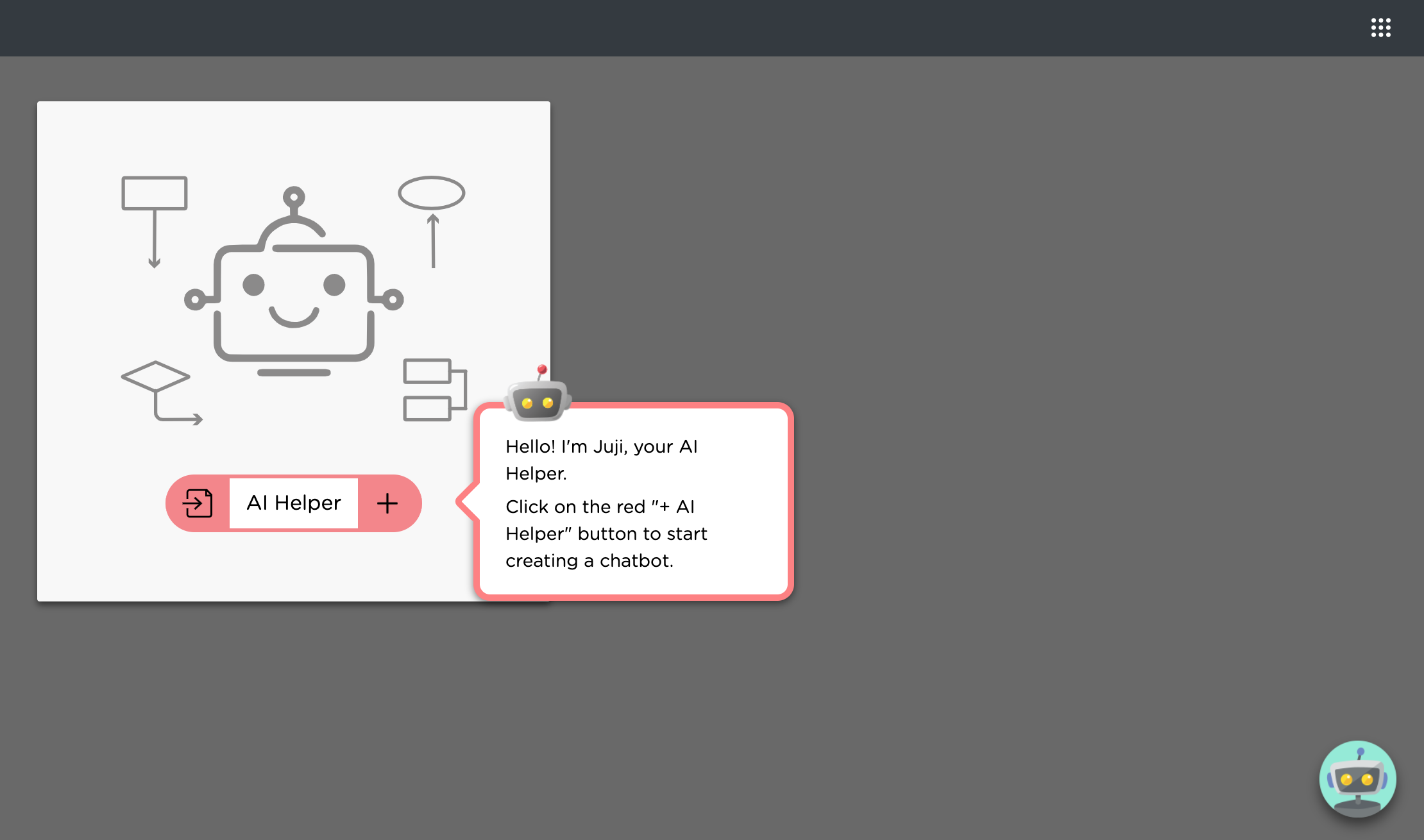
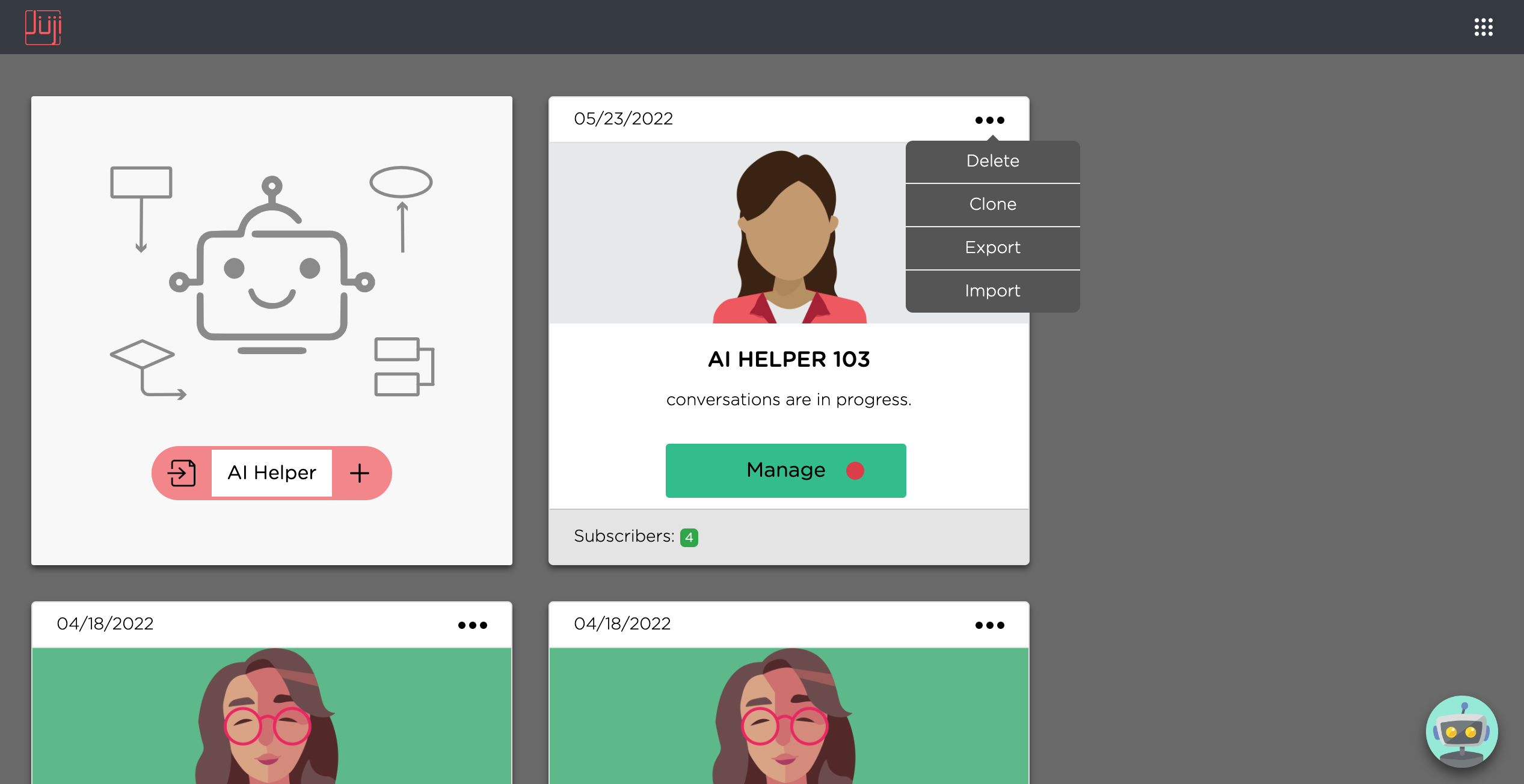
When you login to Ascent Studio the first time, below is what your "home screen" looks like. This is also where all your agents will be listed.
Manage an agent
Once you create an agent, the agent will show up on this "home screen". You can edit the agent's content or behavior as well as test the agent by clicking on the Manage button.
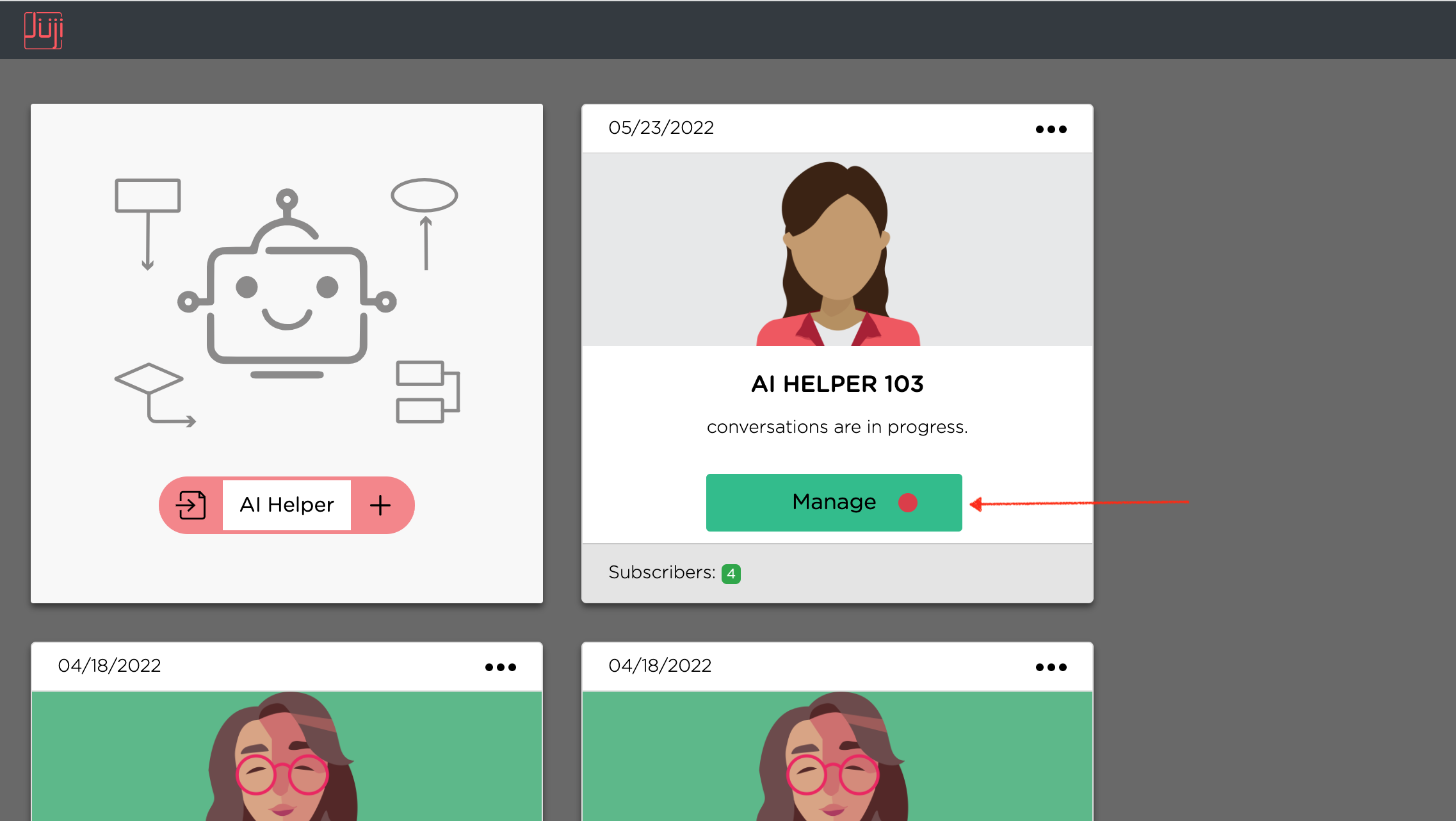
You can also click on the ellipsis icon (three dots) on the top right corner of the agent card, and perform additional management actions on that agent, such as export, import, clone, and delete. When you import an agent into another agent, it means that you wish to replace the target agent's main chat flow or Q&A list with that of another agent.
Design Tip Importing an agent into another agent is most useful when you want to share multi-turn Q&As among different chatbots. The typical Q&A CSV list cannot capture the content and logic of multi-turn Q&As, which can be exported with an agent and then be imported into another agent. See customization of Q&A
Logout
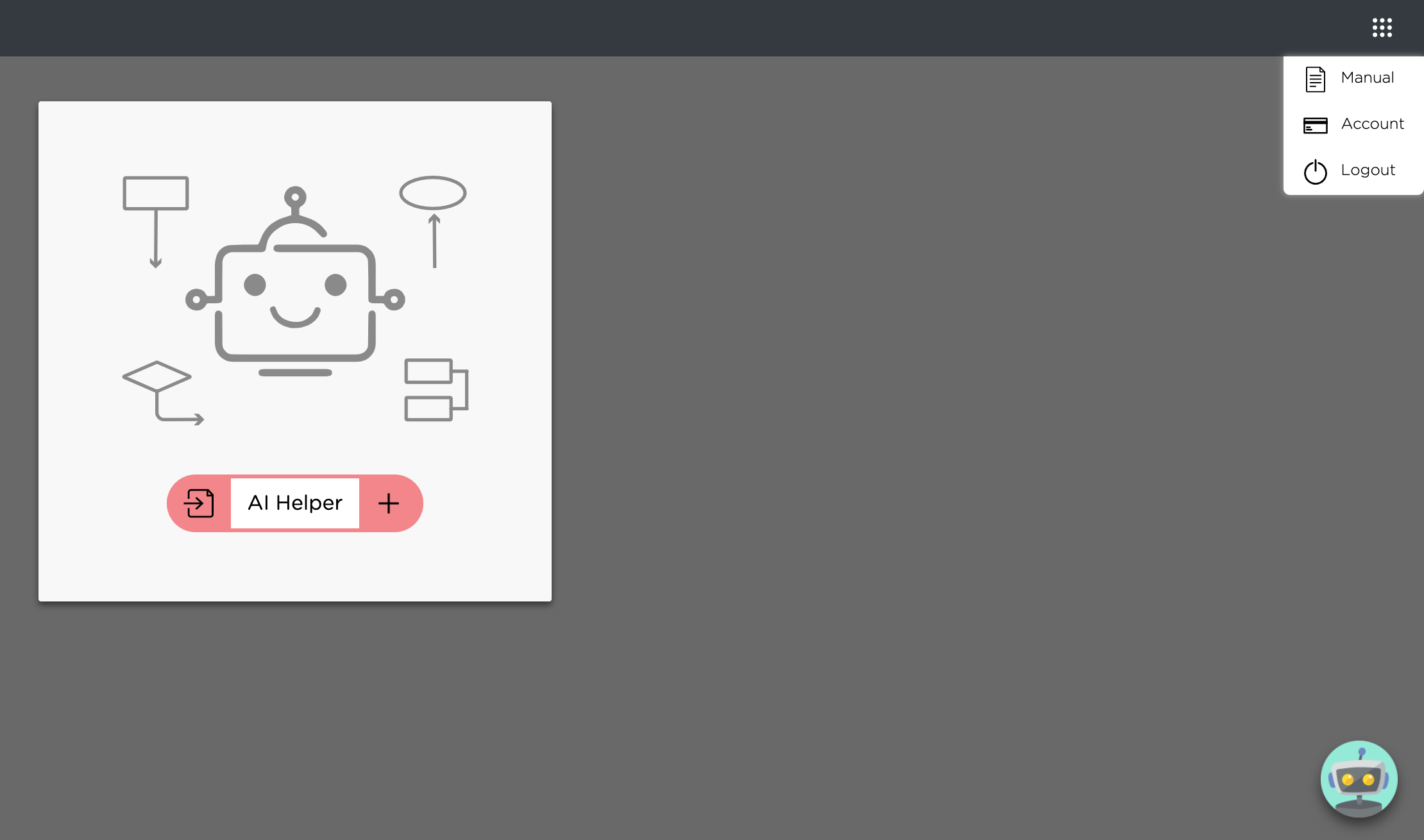
If you wish to log out of Ascent Studio, you can use the menu button located at the top right corner of the screen.
Get Help
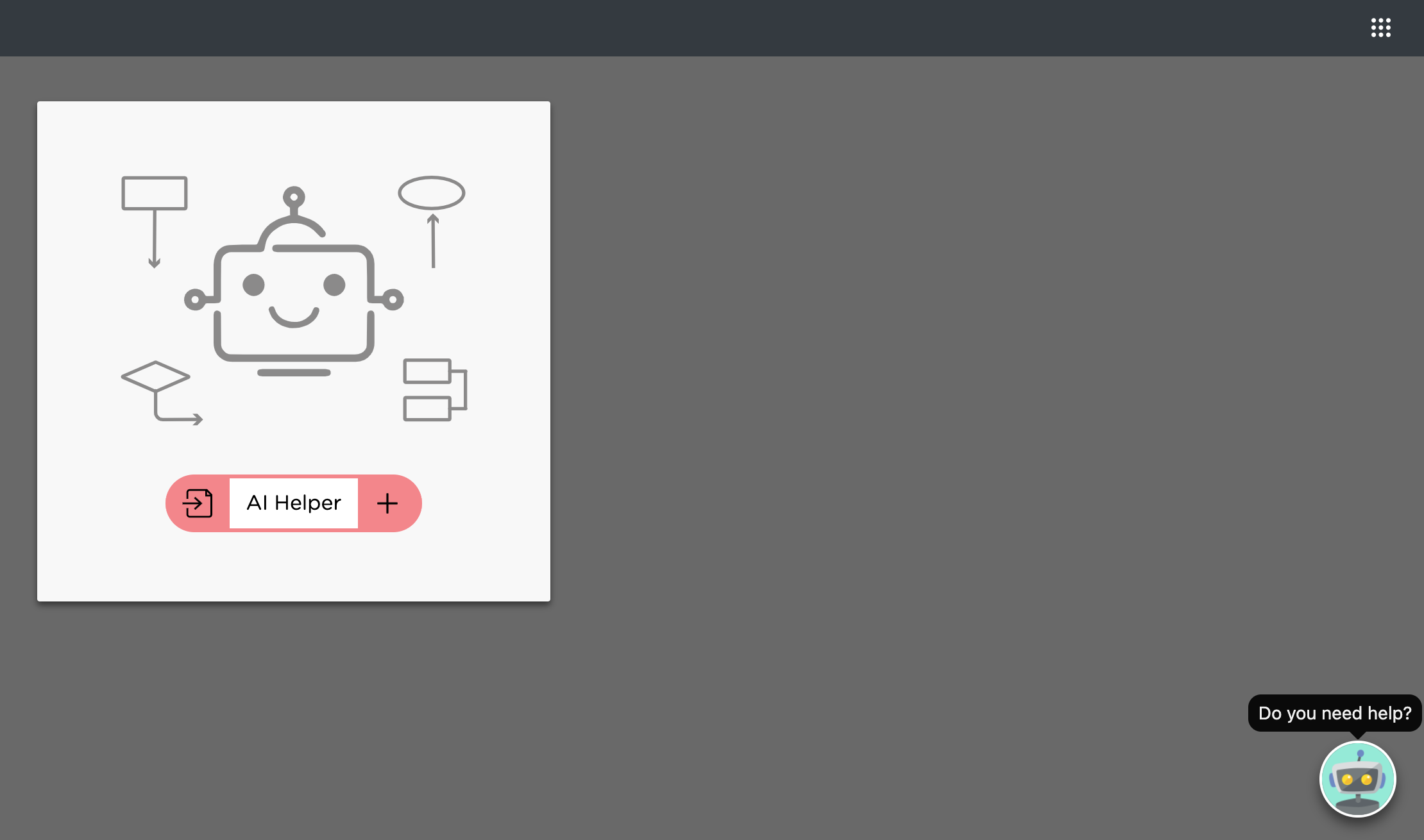
You can also click on the small avatar icon located at the lower right corner and chat with the avatar to get more help.
Follow the reference guide to create, customize, test, deploy, and manage a custom agent in Ascent Studio.
Finally, some great Design Tips and Best Practices to make your agents awe-inspiring.