Ascent Interactive Development Environment (IDE)
The Ascent platform has many built-in capabilities for creating powerful conversational AI assistants. When your needs go beyond these built-in capabilities, Ascent put in your hands a simple yet expressive agent scripting language, called REP (Responsible and Empathetic Persona) langauge, so that you can harness the full power of the Ascent platform.
Ascent IDE provides an interactive development environment that allows agent developers to write, compile, and preview AI agents using the REP language. Ascent IDE is suitable for people with minimal coding skills (e.g., can write HTML) to power AI agents with advanced capabilities (e.g., customizing product recommendation policies).
Work with REP Scripts
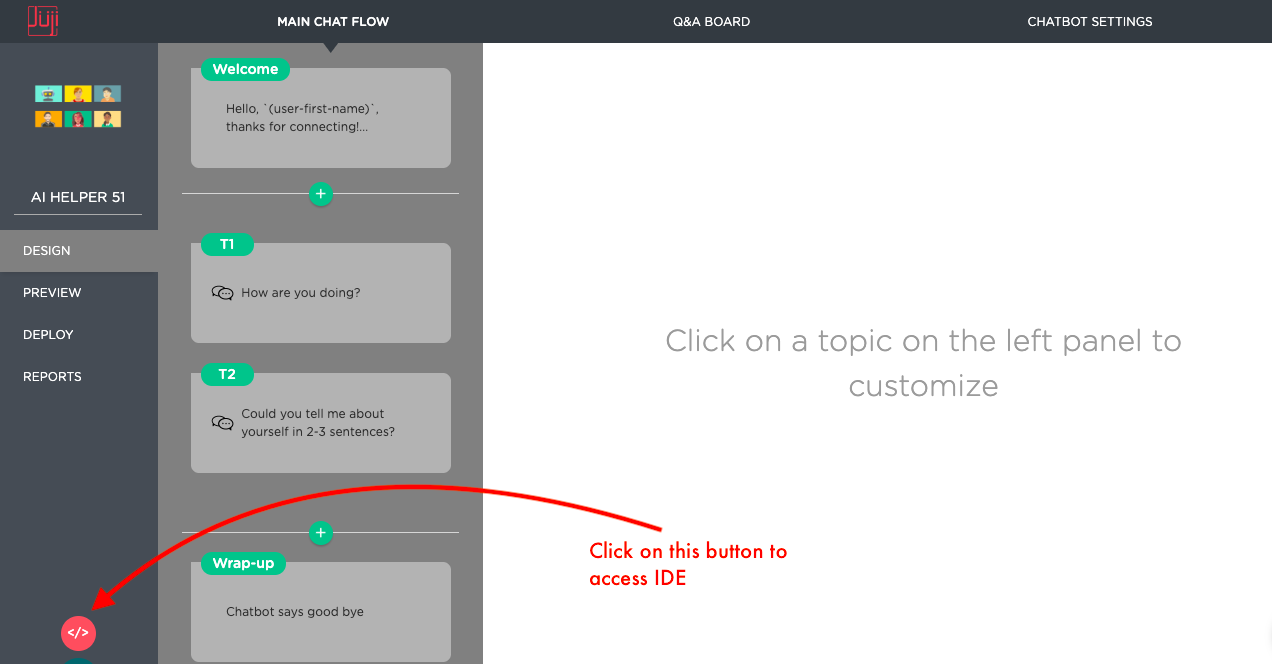
In the IDE, you have access to an online scripting environment. To access the IDE page, you can click on the red round button at the bottom left corner of the agent Design window in Ascent Studio.
File Browser
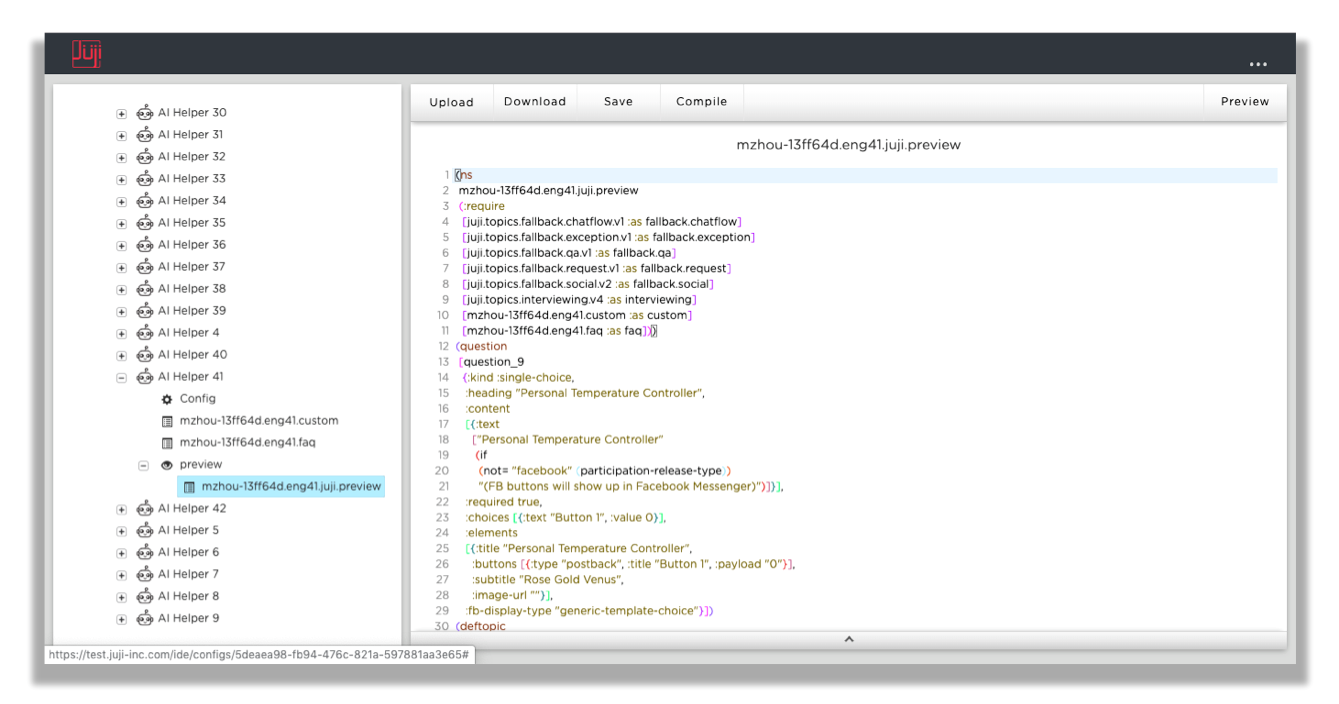
On the left side of the environment, you have a file browser showing all your scripts
and config files. The files are organized by the bot applications you have
created, each called an Engagement.
Each Engagement contains a Config document, which reflects the Design
View of the bot; a Preivew release, which has the script powering
the preview chat; and a number of Web, Facebook, or Slack releases, which
are your production releases of the bot scripts.
Code Editor
On the right side of the environment, there is a code editor containing the file you select in the file browser. The editor has syntax highlighting, rainbow parentheses, and brackets mismatch errors are detected on the fly while you are typing.
Custom script file
The custom script file has a namespace ending in .custom. Such a file is where
your custom topics are saved. You can also freely write your own topics and
functions in that file.
You can Upload a file to replace the file, or Download the file to your
local disk, or Save the file in the Ascent platform.
Main script file
The main script file of a release has a namespace ending in something like
.web2, where web the name of the release channel, and 2 means the second
release of this engagement in that channel.
In addition to Upload, Download, and Save, the main script also supports
Compile and Preview functionality, where you can see your script in action
immediately.
Config document
This document shows the high level structure and content of your engagement. Sometimes it is easier to edit content in the config document rather than in the script files.
When click Generate Script pull down menu, a new release can directly be
created right there.
Add Self-Defined (Complex) FAQs
While you can always use the GUI in Ascent Studio to add FAQs (../juji-studio/design#customize-qa-and-fallback), you may have already prepared answers to some frequently asked questions that you want to import into the script. Ascent provides a command line tool for you to convert the FAQ and answers into REP script snippets, and you can then paste them into your script in IDE.
Before you start, please make sure you have installed Java 6 or higher and you are familiar with general concepts of Ascent script.
Step 1: Prepare the FAQ CSV File
Your self-defined FAQs need to be written in a csv file satisfying the following format requirements:
- The first column lists the questions.
- The second column lists the corresponding answers of the first column's questions.
- One row can only have one answer. But there can be multiple questions in the same row, which means these questions share the same answer. Basically, these are different examples of the same question. These example questions should be separated by newline characters.
- The first row is assumed to be the header.
Here's an example FAQ csv file.
The ability of Ascent bot to recognize FAQs depends on the number of example questions you give. So it is recommended that you give multiple forms of the same question as examples.
Once you have prepared your FAQ and answers in the above format, do the following two steps to import them:
Step 2: Convert the FAQ File to a deftopic
In order to convert FAQs to a deftopic, please download the command line tool in the form of a jar file: faqs-parser jar. Then you can convert your FAQs by running the following command:
java -jar faq-parser-0.1.0.jar <path/to/your-faq-csv-file>
You can also run the program with the help option to see all possible options.
java -jar faq-parser-0.1.0.jar -h
Running the faq-parser produces an edn file containing one deftopic.
For instance, running the faq-parser without any option on our example FAQ csv file would produce the following deftopic using a default name generated-faq-topic:
(deftopic
 generated-faq-topic
 []
 [(>
   (max-similarity-score
    ["where does your company locate?"
     "what's your address?"
     "where is your office?"])
   0.75)]
 ["We are located in San Jose, California."]
 [(>
   (max-similarity-score
    ["how frequently do you carry out maintenance?"])
   0.75)]
 ["We carry out maintenance once a month."]
 [(> (max-similarity-score ["how can i try your service?"]) 0.75)]
 ["Our service is currently free to try. Please visit our website at juji.io to create an account and try to build your own agent in 10 minutes."])
Step 3: Paste the deftopic into your script in IDE
Once you have your csv file converted, you need to copy the deftopic form from the edn file into your main chat script. You can paste it anywhere that has the same global scope as other deftopics.
Then, in your script, find the :ad-lib key and its vector value in (config ...), and add the name of the deftopic to be the first item in that vector. By putting your deftopic at the beginning of the :ad-lib vector, the REP will check it before all other FAQs. On the other hand, you can generate multiple FAQ topics and place them in the :ad-lib vector in the order you desired.
Following our previous example in step 2, below is a screenshot of adding the generated deftopic generated-faq-topic to a script and add the topic name to the script's :ad-lib vector:
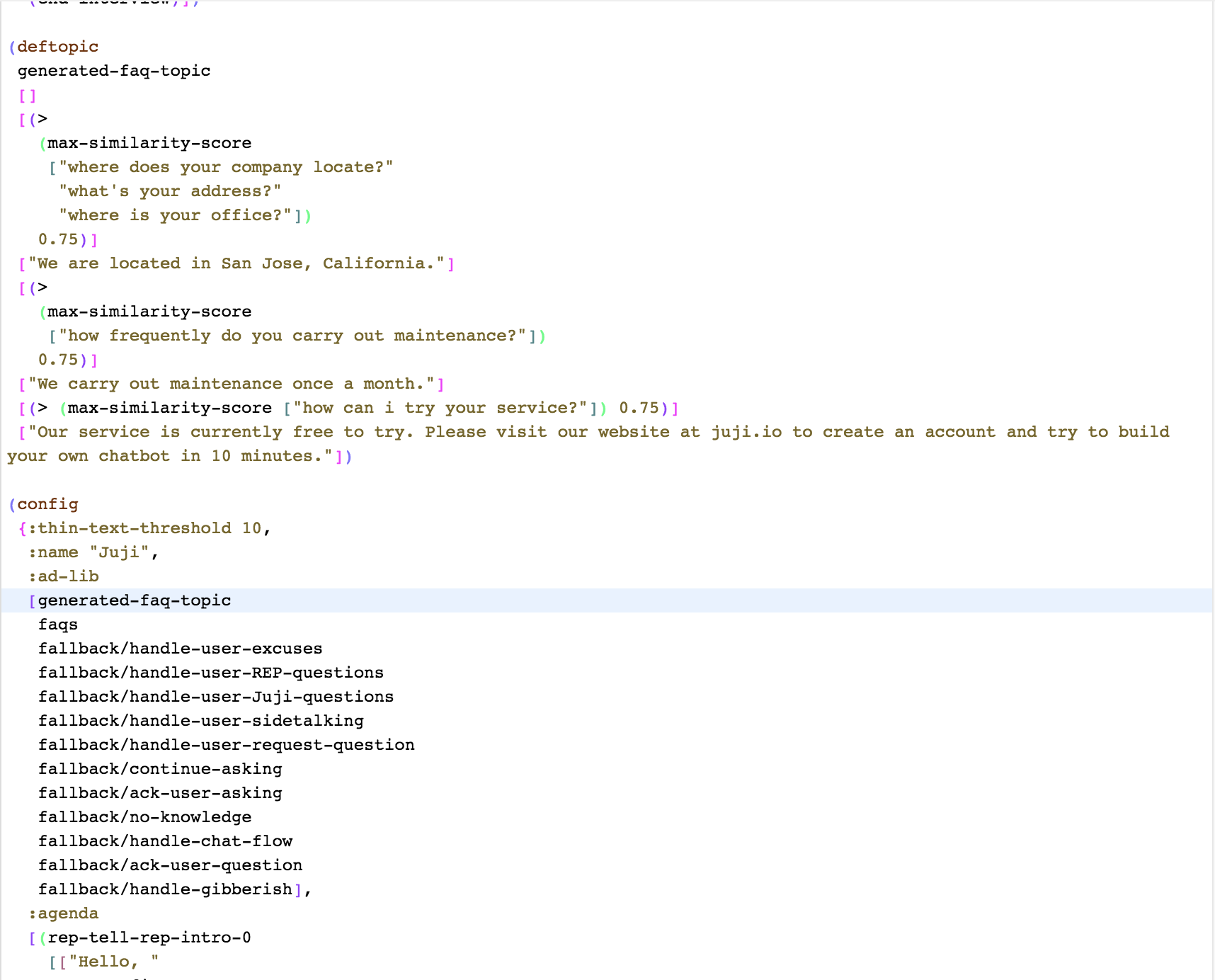
At this point, you may save and compile the script. Now your self-defined FAQs are added to your agent.
agent Scripting Resources
To use Ascent IDE effectively and efficiently, you may also want to check out the following resources, which can help you write scripts, extend agent capabilities, and integrate Ascent agents with third-party systems.
Ascent Concepts
Unlike other agent platforms, Ascent agents' built-in intelligence relies on several key concepts, such as conversation topics and automated dialog management.
Ascent Built-in Dialog Library
Unlike other agent platforms, Ascent has a rich dialog library, consisting of many mini-conversations, known as built-in topics. Such topics can be directly used or customized to assemble an agent rapidly.
Ascent Functions
To extend the capabilities of Ascent agents, such as connecting them with third-party systems or resources, you can use Ascent functions. There are two types of functions: