Design AI agent
Create Your First AI agent
To create your very first agent, you have two ways of doing it. One way is to create a new agent from scratch using one of the Ascent agent templates; the other way is to import an existing Ascent agent.
Create a new agent from scratch
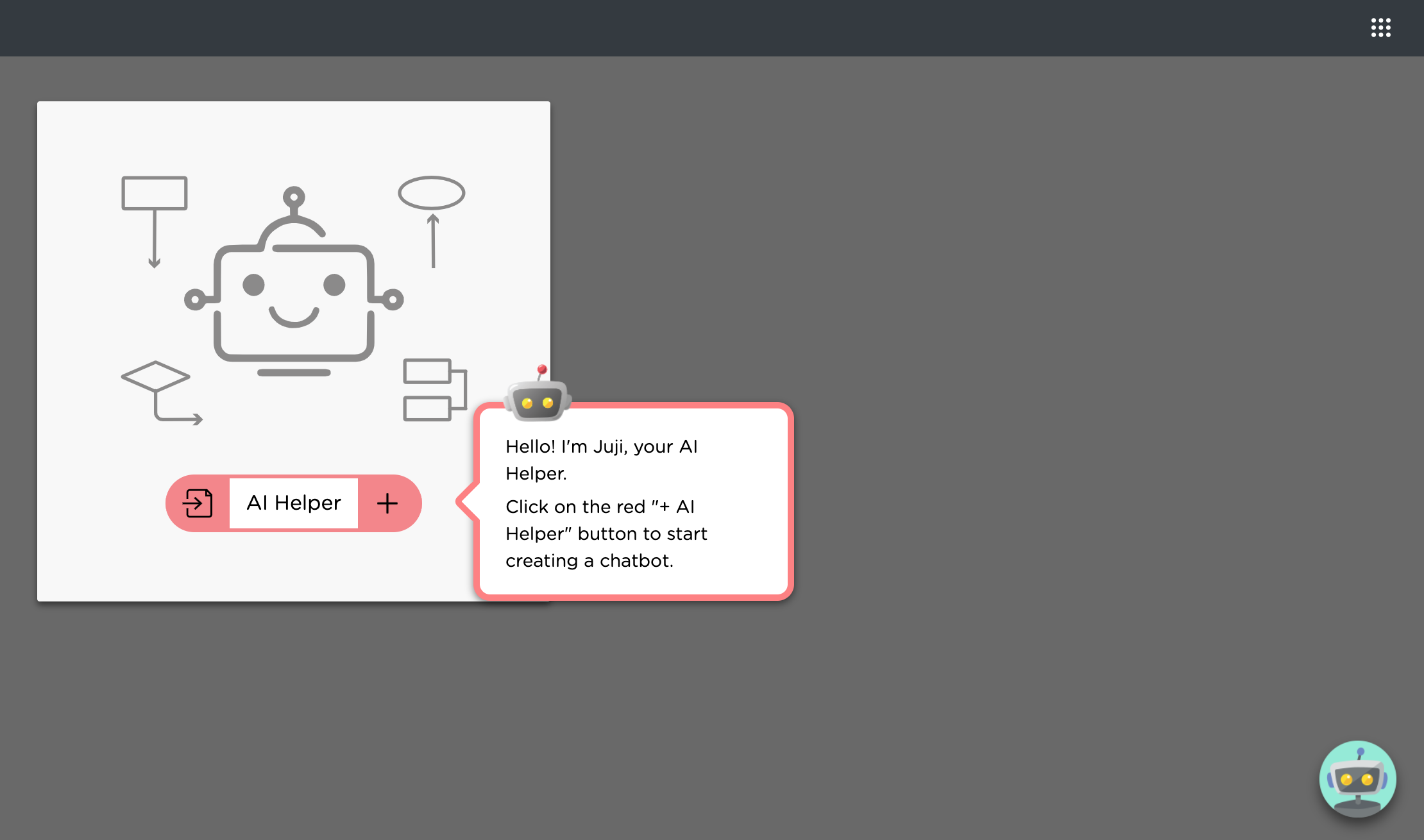
Just click on the "+" button to create a new agent.
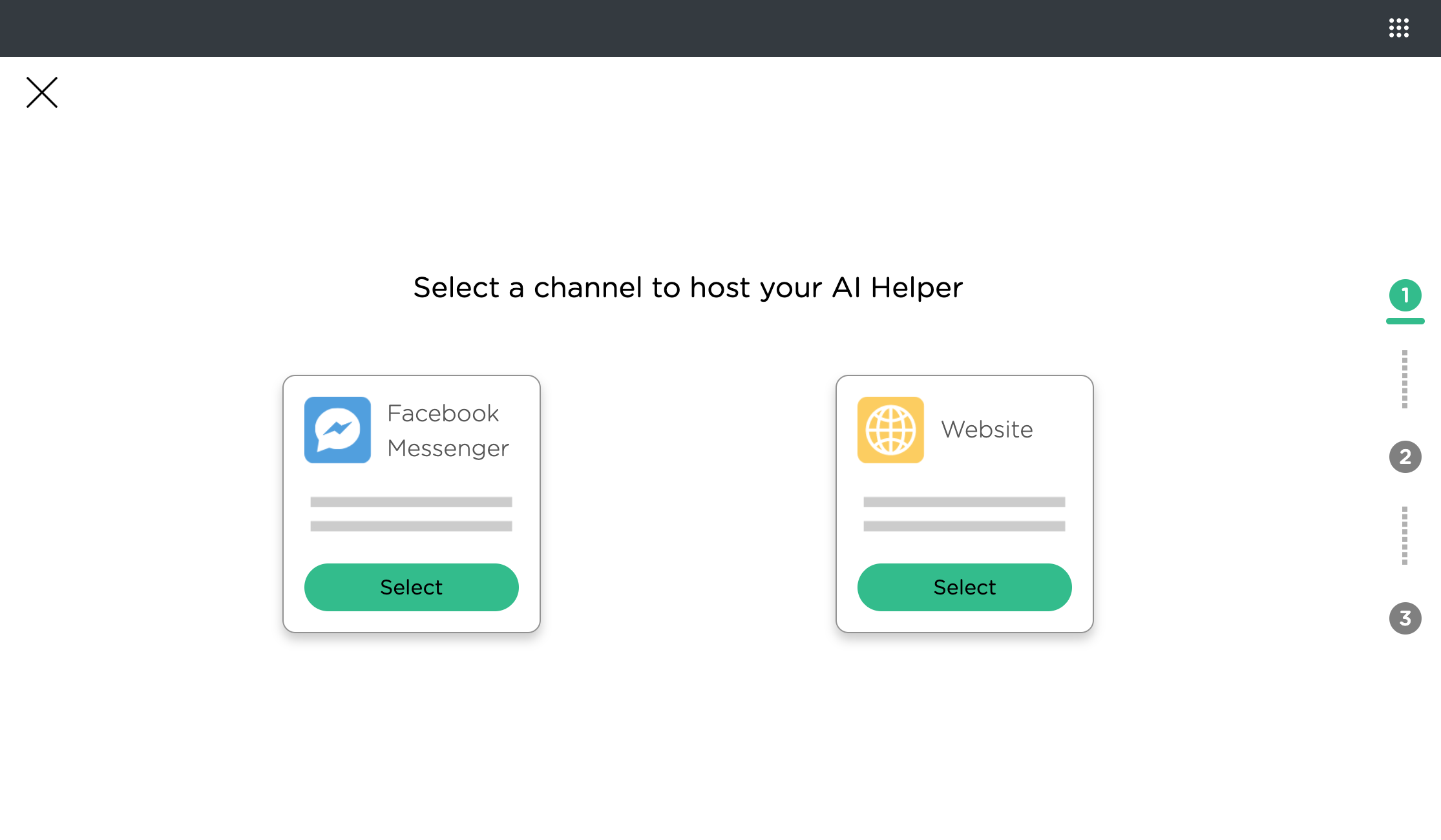
Select an agent deployment channel
Ascent currently supports two direct deployment channels: Facebook Messenger and a website. Because each channel may support different custom agent messages, you will choose a channel to start. If you do not know which channel you will use yet, we suggest that you choose the web channel as it is most generic.
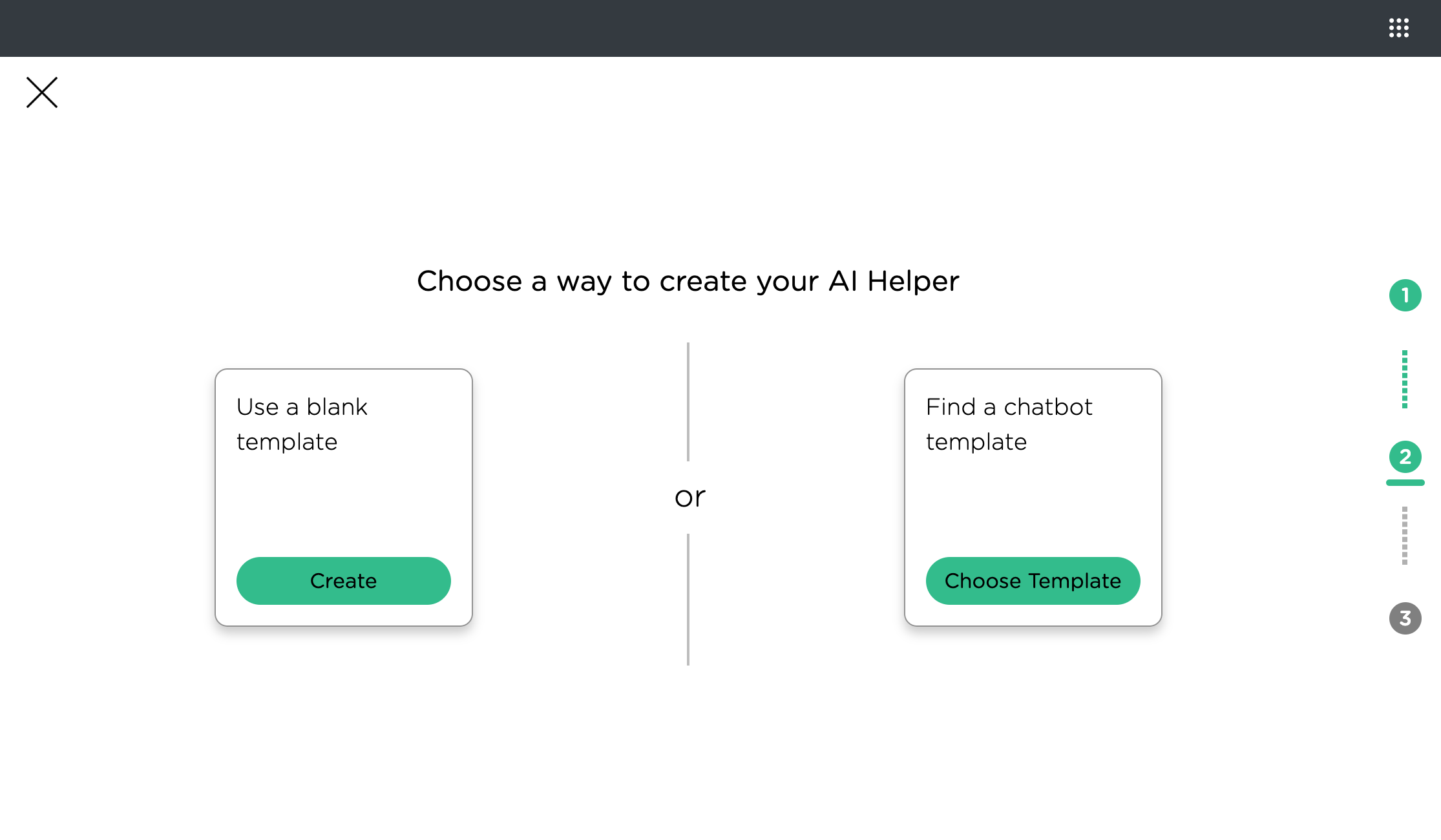
Select an agent template
Ascent provides a set of task-specific templates that can be used to create a agent. If you wish to start with a clean slate, you also have the option of selecting the blank template, which includes only a Welcome message and a Wrap-up message, leaving the main chat flow empty for further customization.
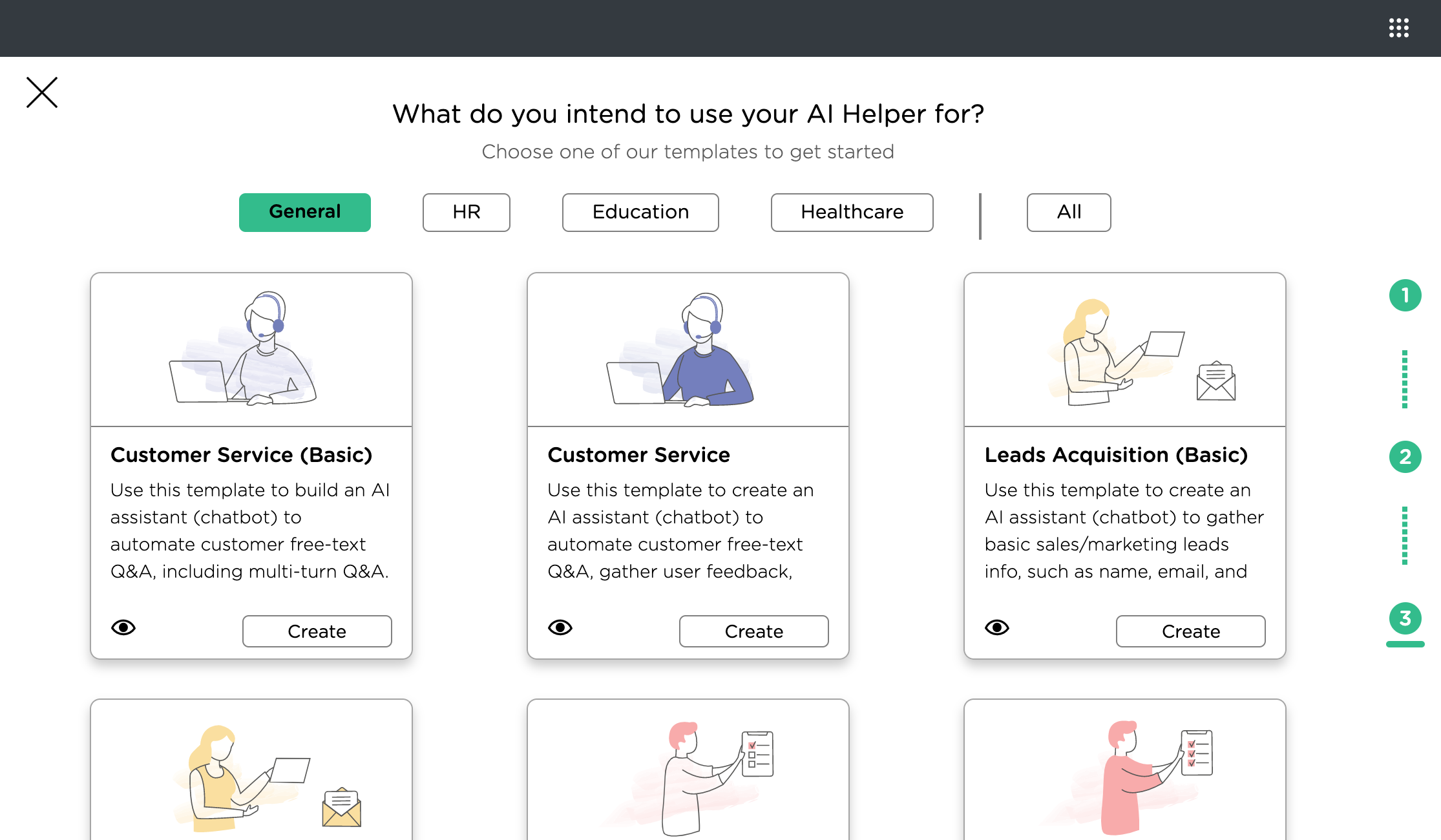
General agent Templates. Ascent templates are organized by domains. If a template is domain agnostic, it is considered a general template. For example, the templates that can be used for conducting conversational surveys or product marketing are placed under the "General" category.
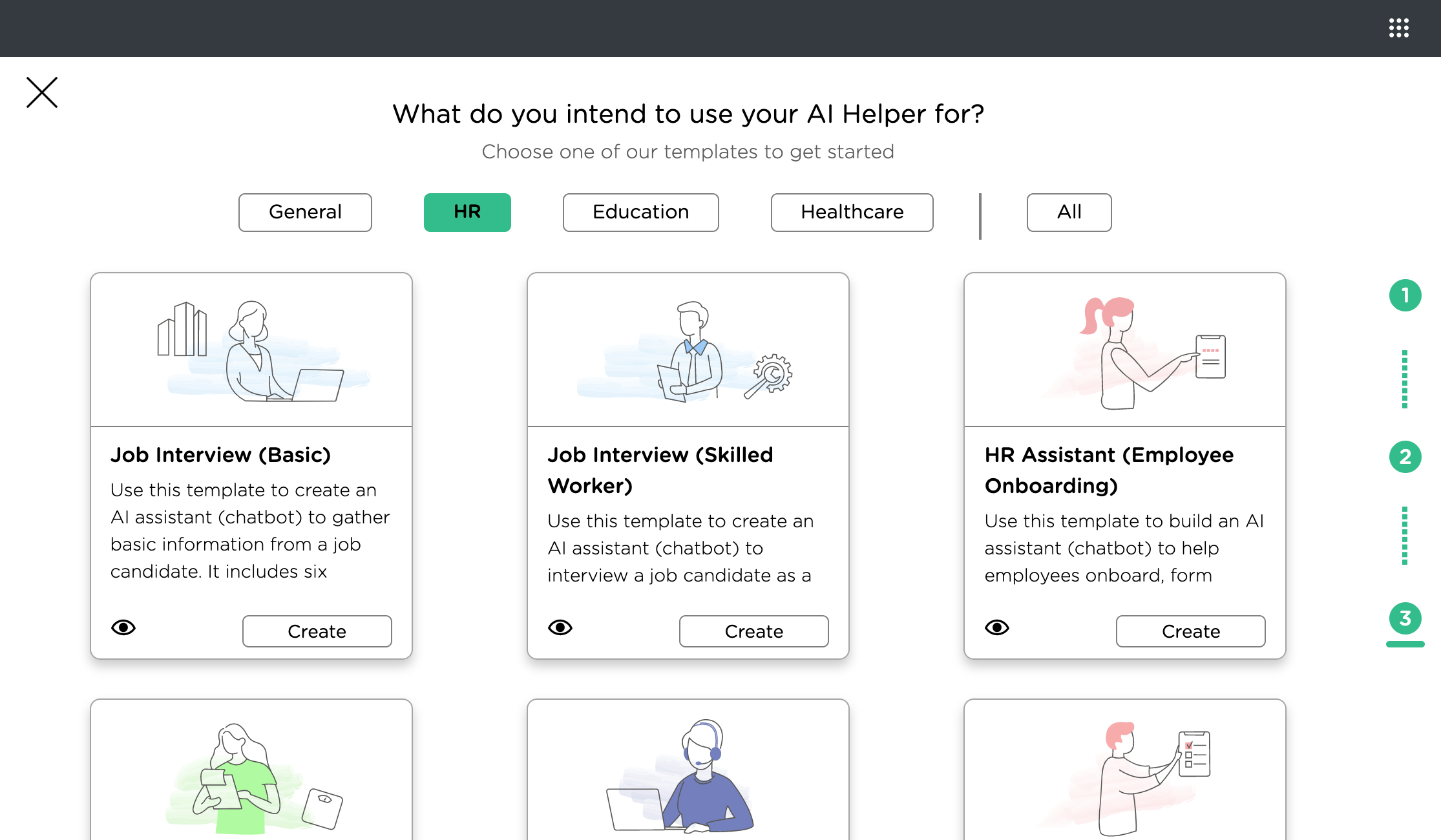
HR (Talent Management) agent Templates. Ascent provides three sets of domain-specific templates. One domain is talent management for Human Resources (HR). This set of templates covers the whole spectrum of talent management, from talent recruitment, talent engagement, to talent development.
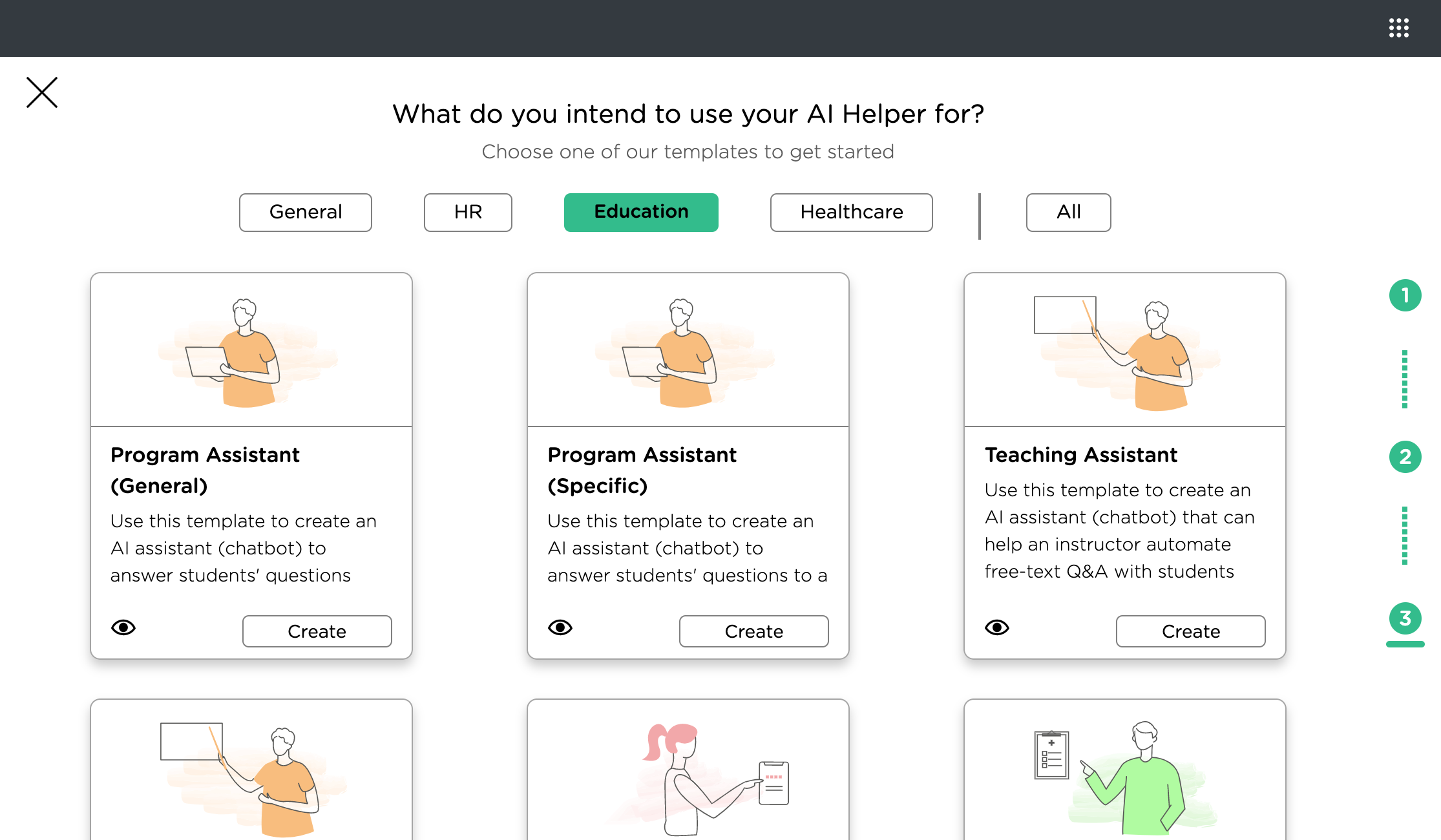
Education agent Templates. The second domain that Ascent covers is education and learning, covering the whole student lifecycle, from student recruitment, onboarding, to learning and assessment.
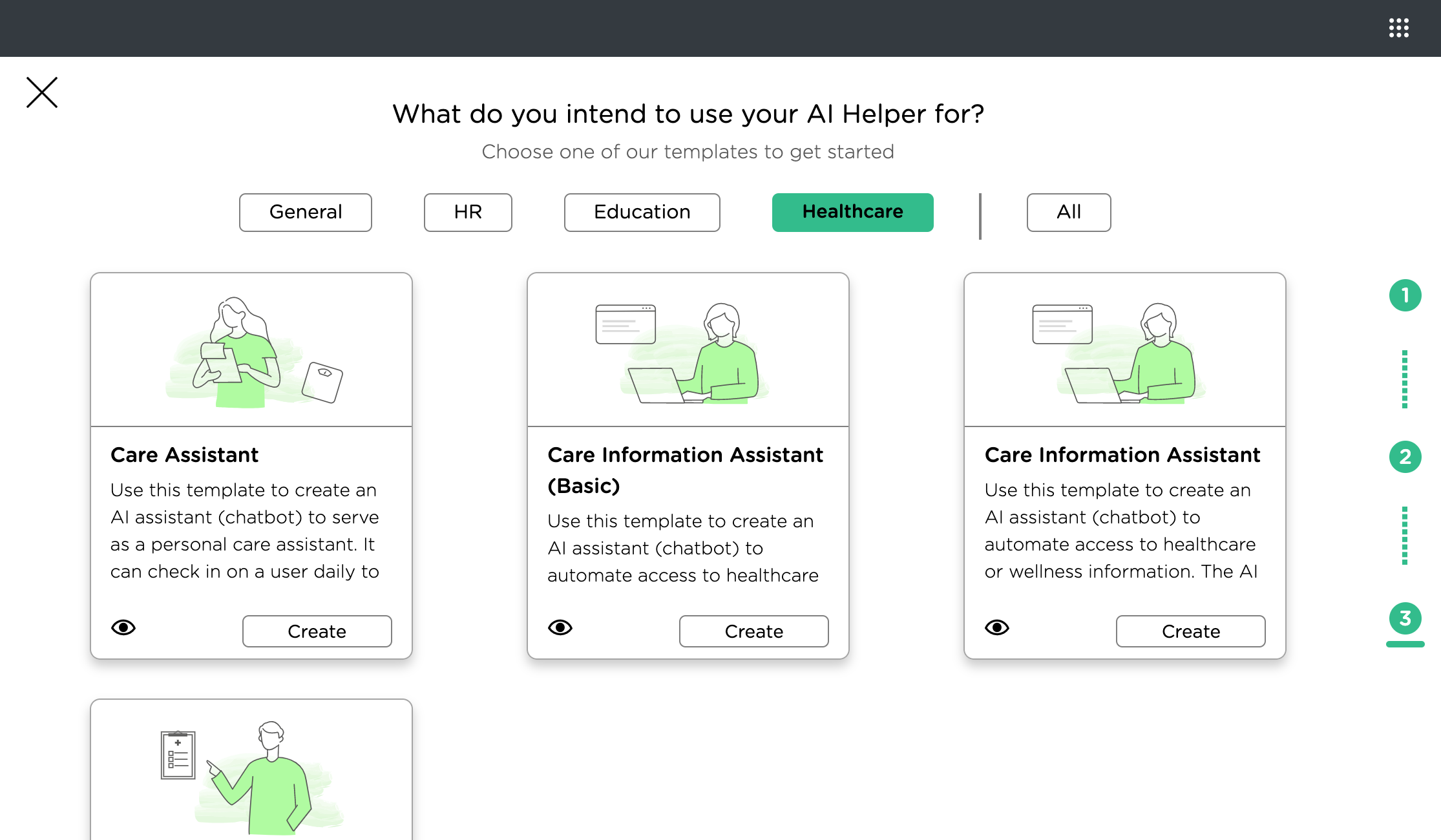
Healthcare agent Templates. The third domain that Ascent covers is healthcare, covering various telehealth tasks, such as patient triage and engagement (check in).
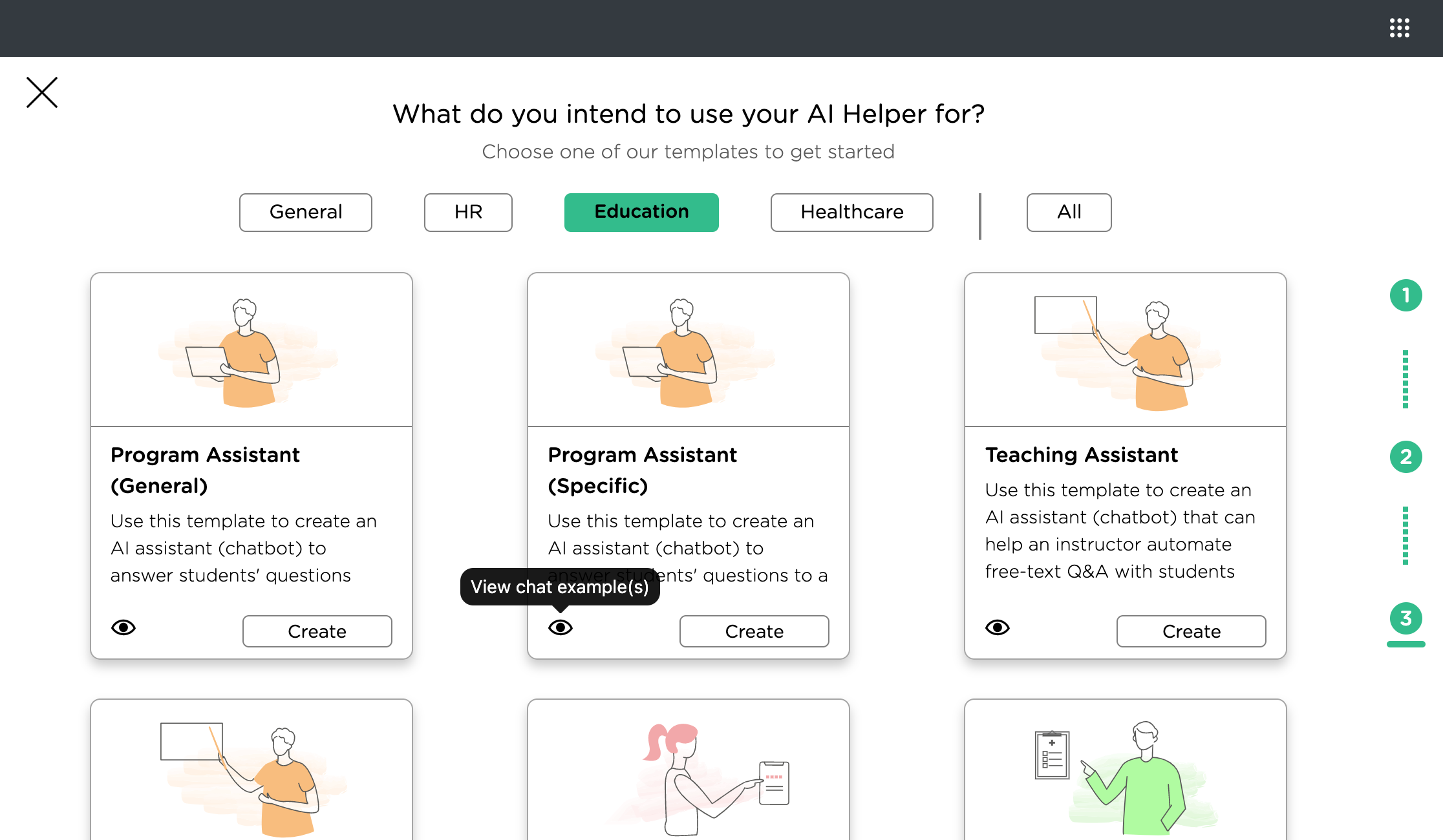
Before choosing an agent template, you can always preview sample chats produced by the template by clicking on the "eye" icon associated with each template.
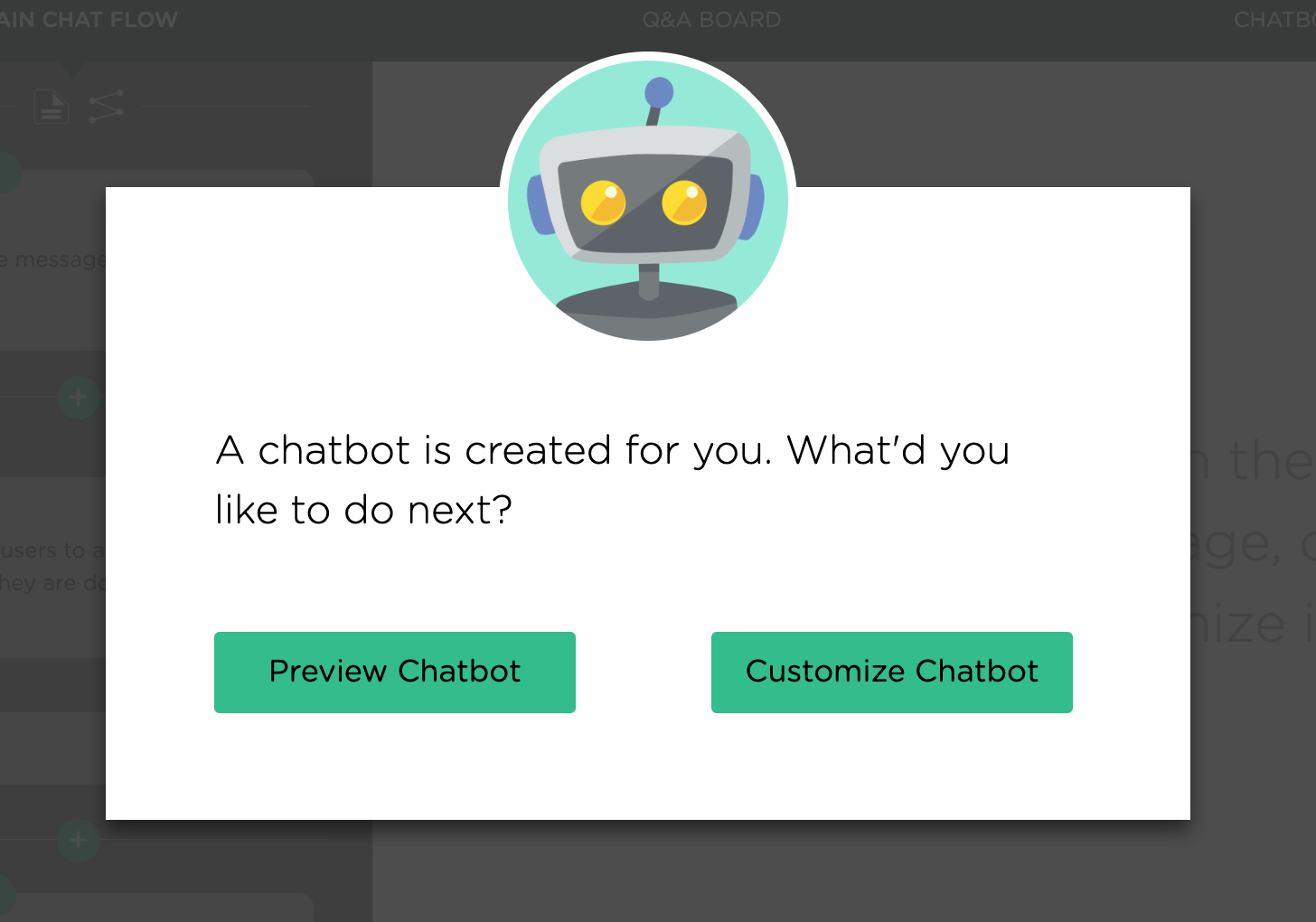
Once you select a template to create an agent, you will be able to preview the agent or customize the created agent immediately. See more below on how to customize a agent.
Import an Ascent agent
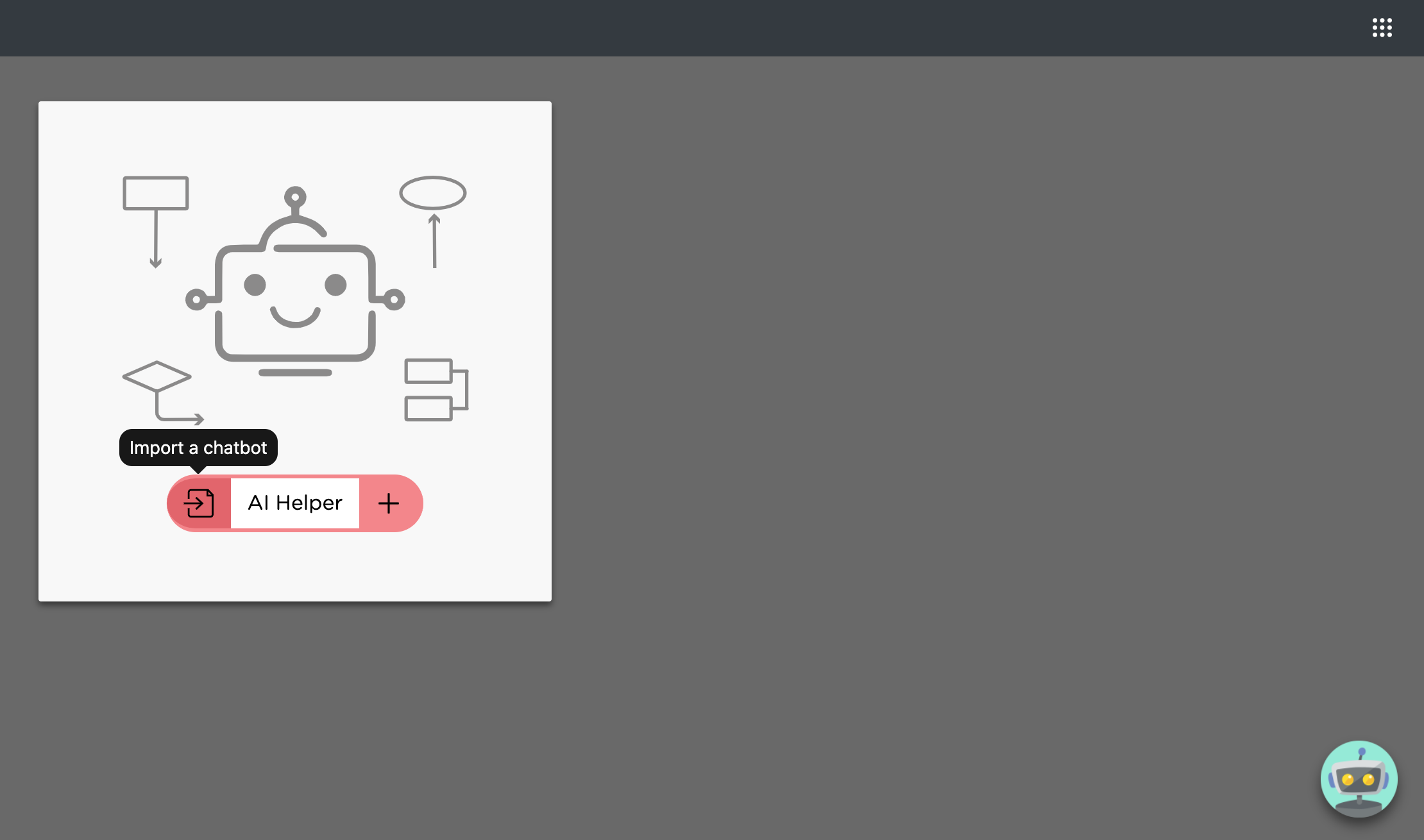
Instead of creating one from scratch, you can use the "import" button to import an existing Ascent agent.
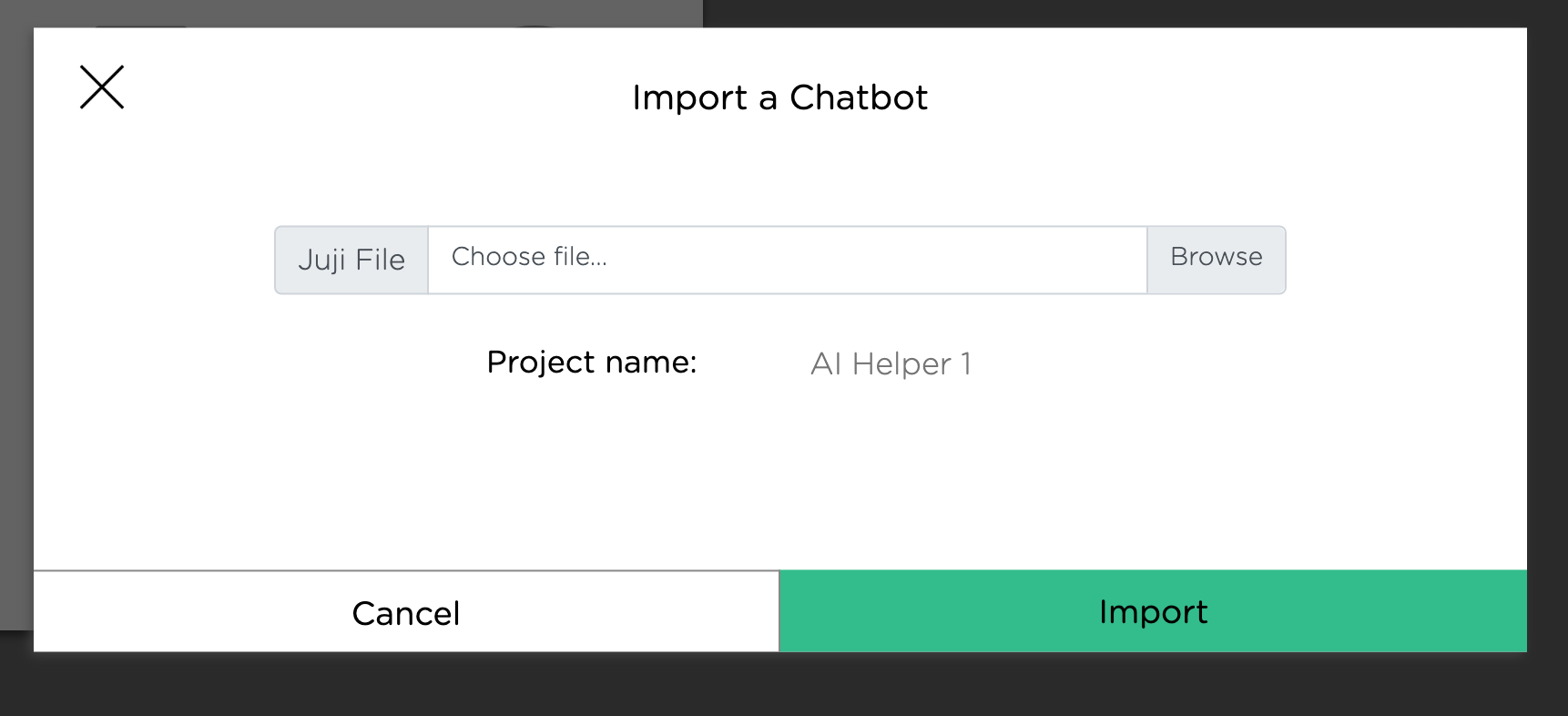
An existing Ascent agent is stored in a file with a file extension .Ascent. Here is how you can export an Ascent agent to share with others or with a different Ascent account.
Customize AI agent
Once an agent is created or imported, an agent creator can use Ascent Studio to customize the agent from three aspects:
Customize Main Chat Flow
Just like a human assistant, every AI agent on Ascent has a "playbook", which contains a workflow and drives the agent to take actions. This "playbook" is defined as the main chat flow in Ascent Studio, also known as the conversation agenda. A typical flow threads one or more conversation topics to drive a conversation forward. an agent template contains a pre-built flow and a creator can customize such a flow by adding, removing, and editing a topic in the flow. Read More.
Customize Q&A and Fallback
AI agents should be able to answer user inquiries or respond to user comments any time during a chat. To enable such capabilities, an agent creator can add, remove, and edit a Q&A list and fallback handling as shown below. Read More
Customize agent Persona and Beyond
an agent creator may also want to customize the agent persona as well as other chat-related settings, such as controlling the pace of a chat. Read More
Test AI agent
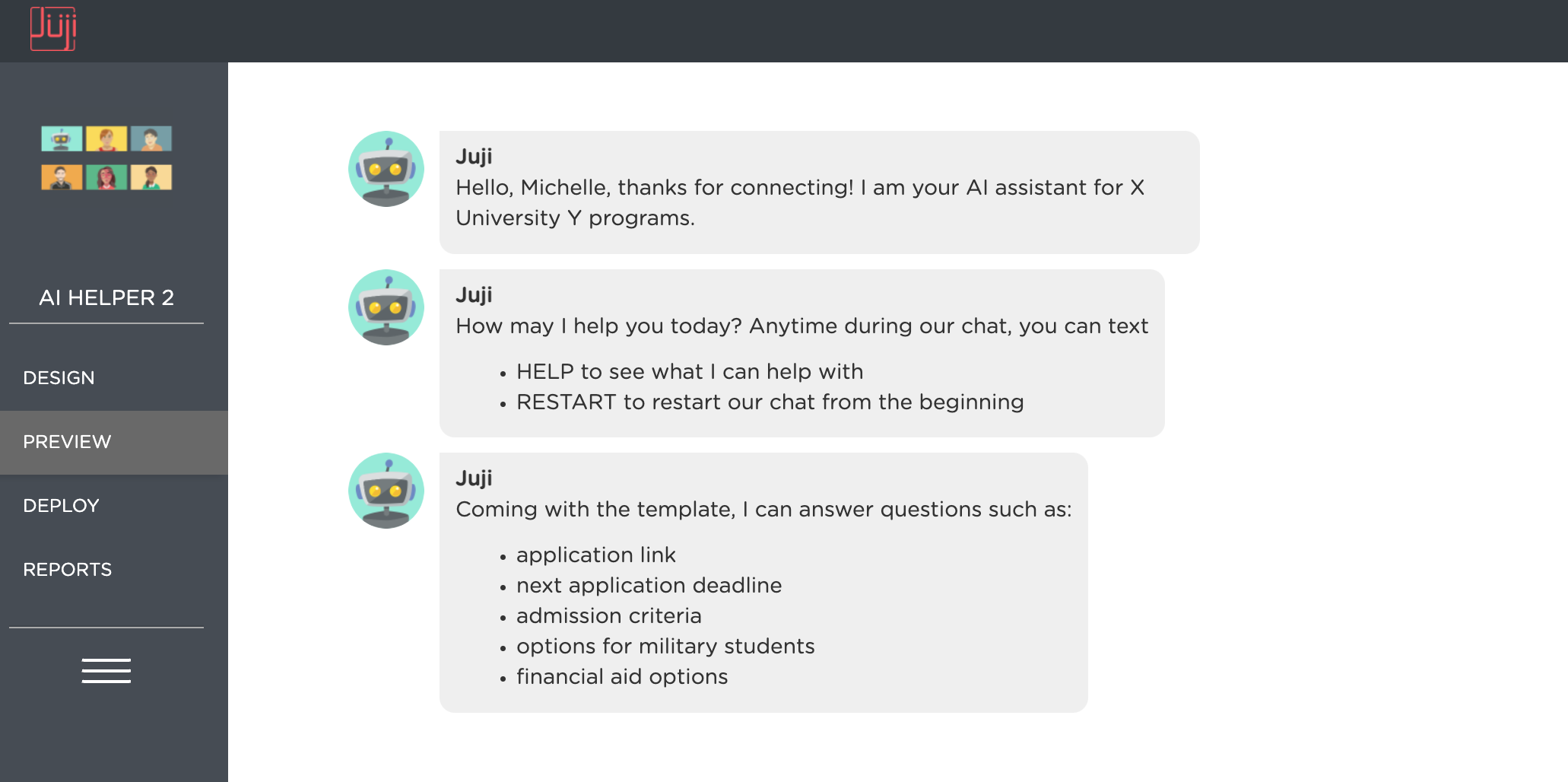
One can test an agent easily by clicking on the "Preview" button. This allows an agent creator to interact with the agent, testing how the agent works immediately and what improvements may be needed.
What's Next
Once an agent is ready, you can deploy it onto a website or a Facebook page. Please check out agent Deployment to deploy your AI agent.