Customize agent Settings
In addition to customizing the main chat flow and the Q&A list, one can also customize various agent settings, including the name of the project.
Project Name
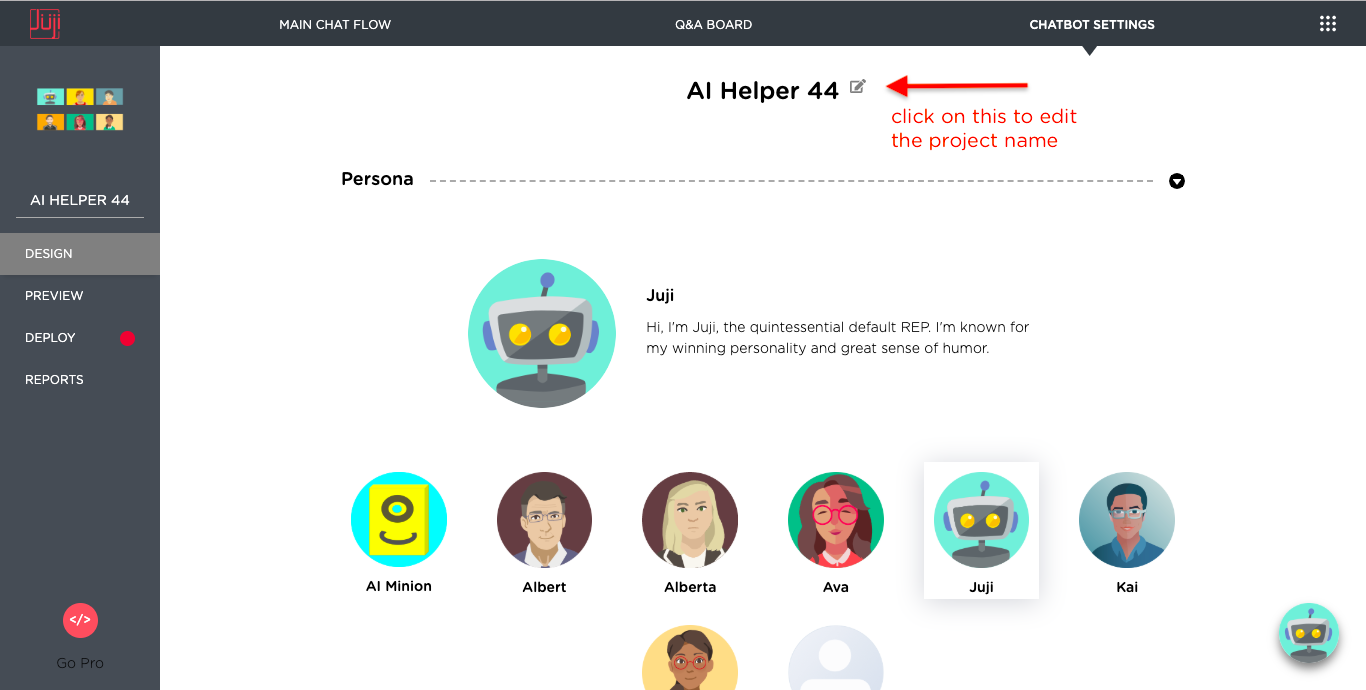
You can edit the name of your project by mouse hovering the project
name and then click on the pencil button.
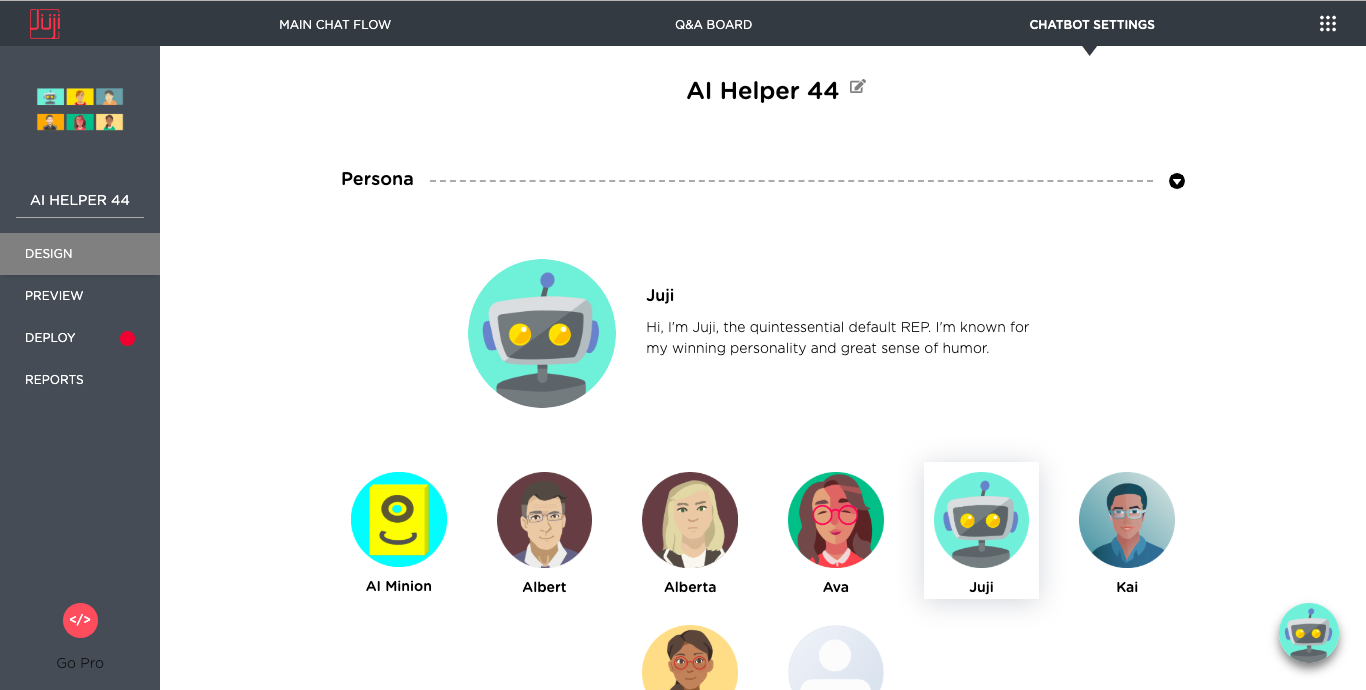
agent Persona
To personalize your agent, you can choose a stock persona or define a custom persona.
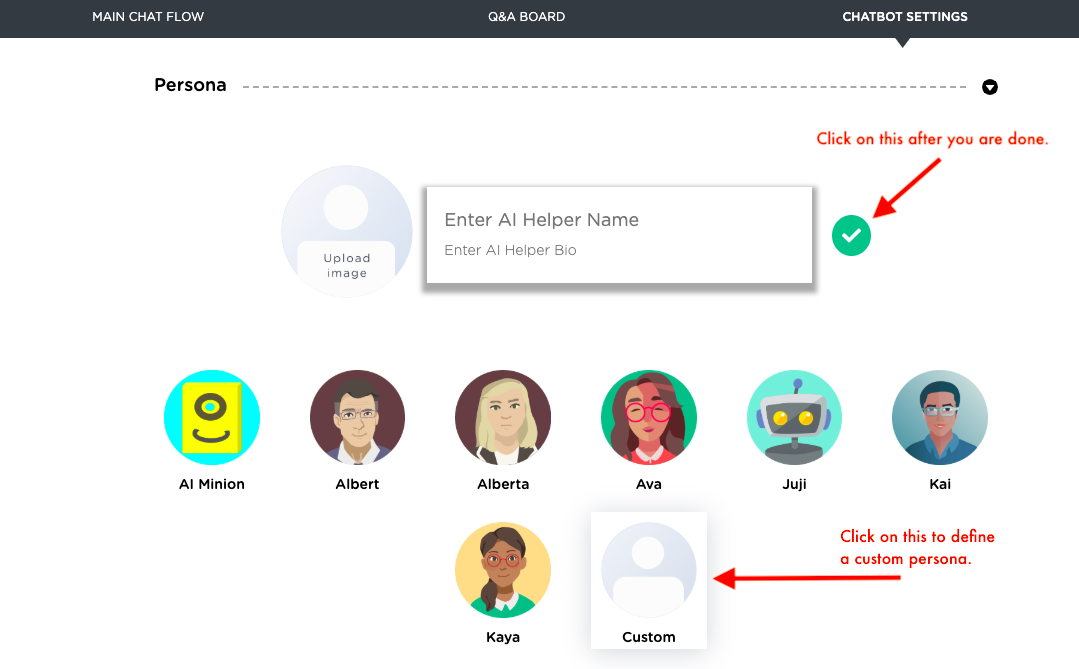
To define a custom persona, click on the Custom persona icon as shown below. You can then upload your persona photo, give your custom persona a name, and enter a short bio. Once you are done, click on the green check mark to save it.
Display Control
You can customize various chat display parameters to affect how a chat or chat window appears.
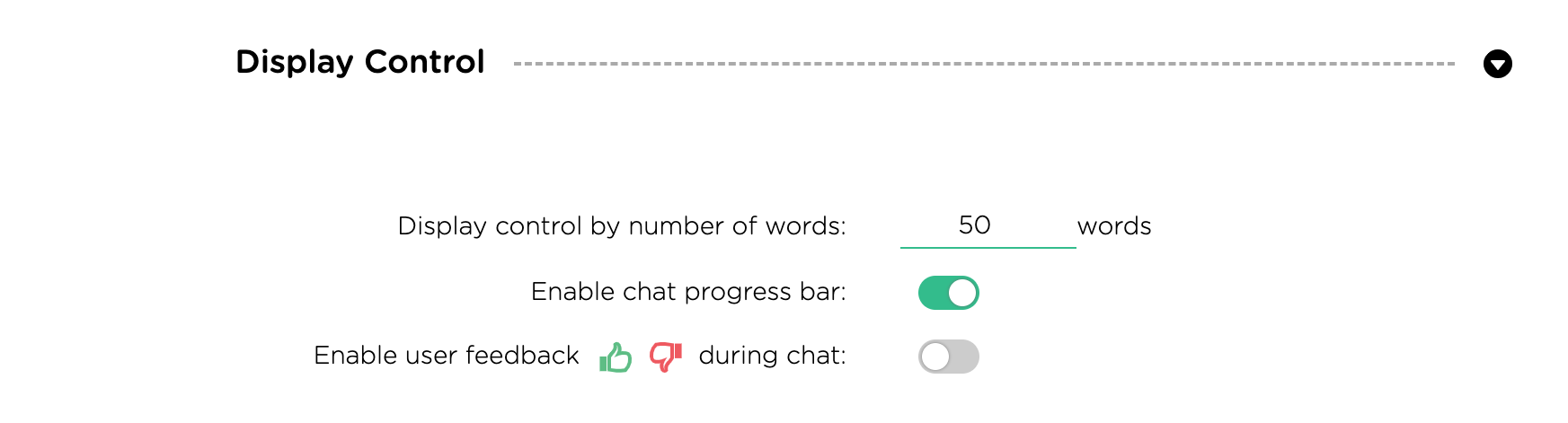
Display control by number of words
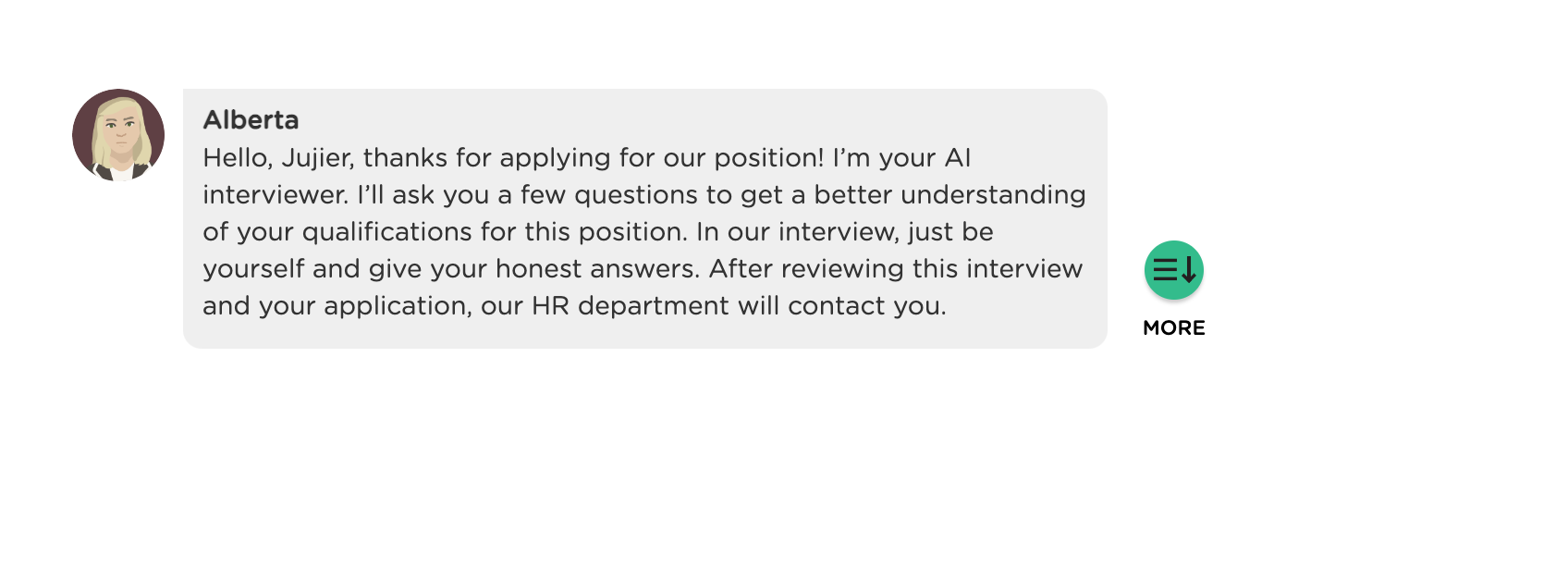
When an agent sends a long message (by default 50 or more words), you may wish to give users some time to read and digest the message before moving on. In this case, the message will be automatically displayed with a "More" button. Whenever a user has finished reading the message and is ready to move on, s/he will just click on the "More" button to move on. You can change the default (50) to decide what would be considered a long message.
Enable/Disable Progress Bar
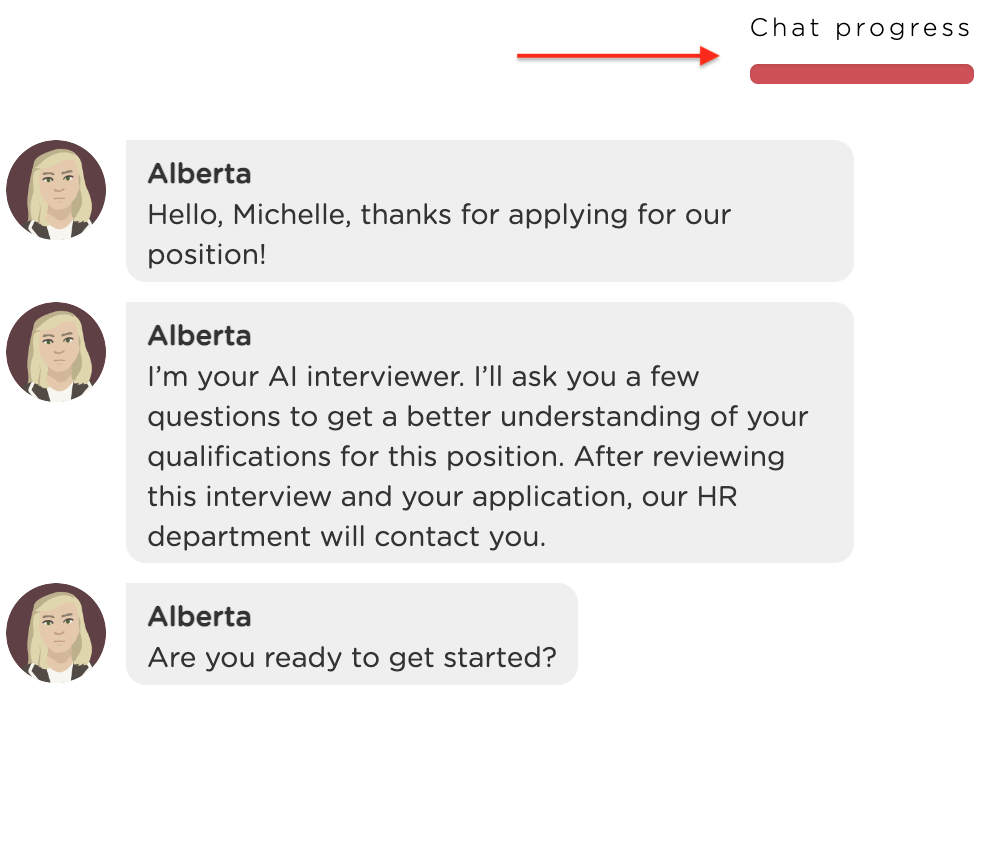
When an agent is used to perform a certain task that has a definite beginning and end, such as conducting an interview/survey, onboarding a user, or taking an application, you may want to display a progress bar so the users would know where they are in the process. You can turn on or off the progress bar as needed.
Enable/Disable User Feedback
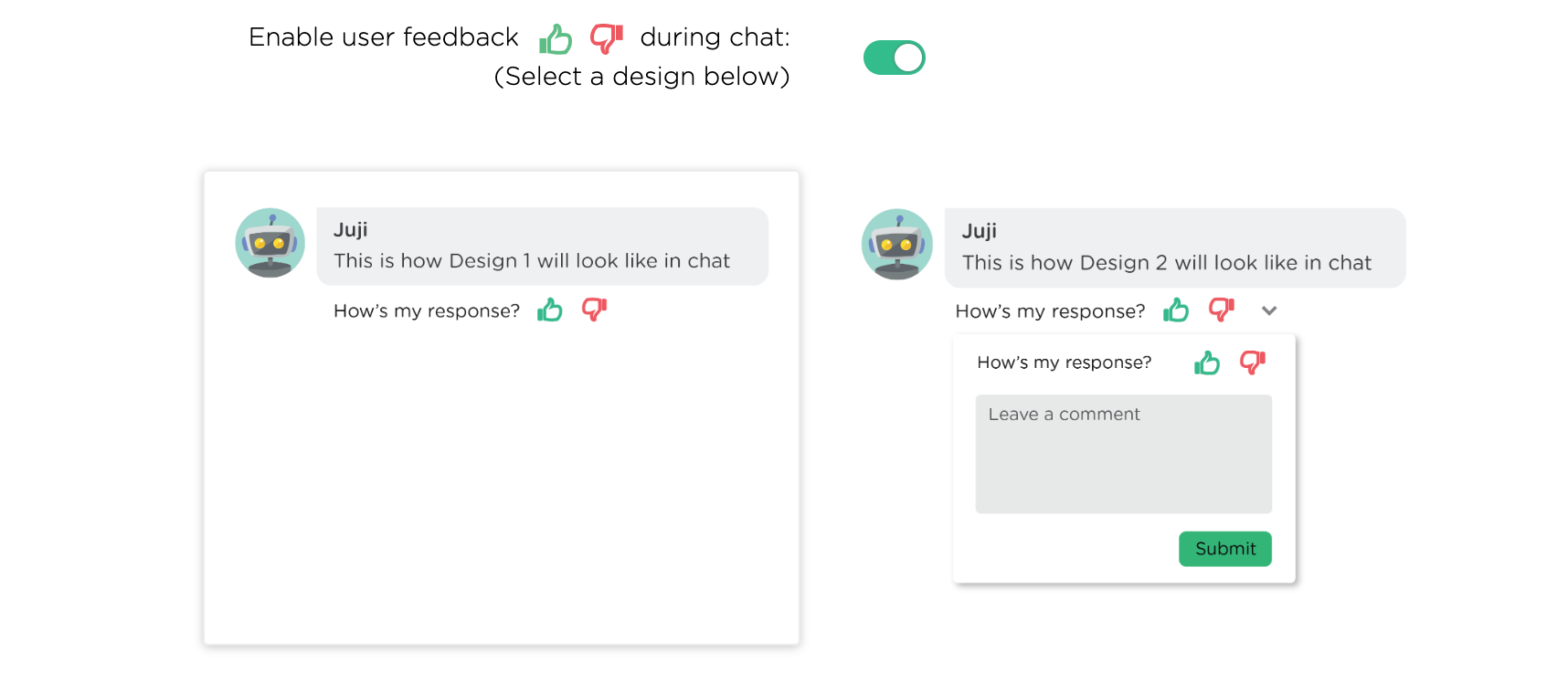
Currently an agent can receive a user's feedback while it answers the user's questions. You can enable/disable whether to receive a user's feedback. It supports two types of user feedback, the first type is just a quick "thumbs up" or "thumbs down" feedback, while the other also takes additional comments in addition to a thumbs up or down. Flip the toggle to enable it and then click on one of them to select which type of user feedback to receive.
User Input Control
Under the section called "Input Control", you can turn on or off the spelling checker. Currently, the spelling checker auto-corrects the words that are not in its directionary while providing users with a chance to revert the auto correction.
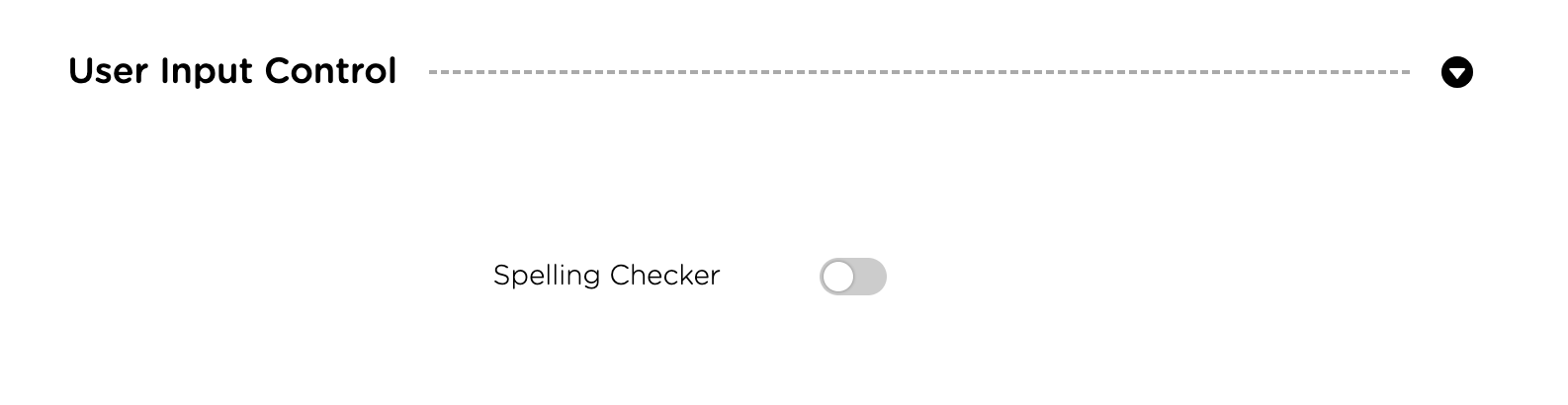
Once the spelling checker is turned on, you can add unusual words or phrases to the existing dictionary so the use of such words/phrases will not be auto-corrected.
Customize Conversation Tempo
Customize the pace and duration of a conversation by following parameters.
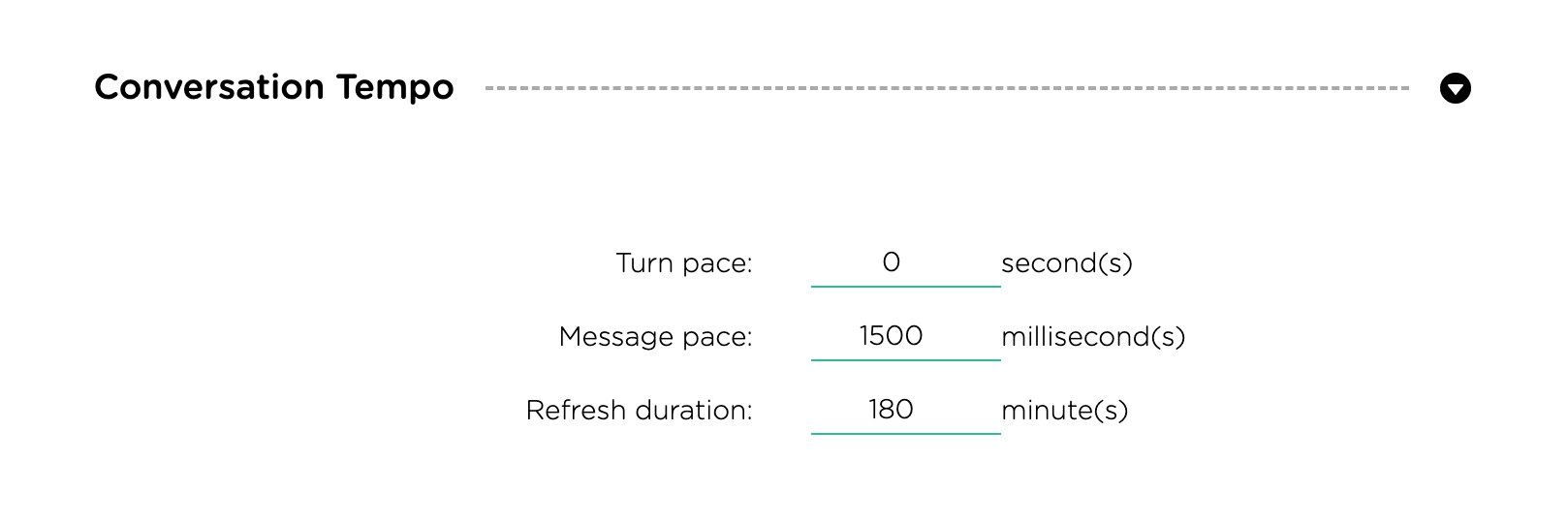
Conversation pace
You can speed up or slow down an agent transitions from one topic to the next.
Messsage pace
You can speed up or slow down an agent transitions from one message to the next.
Refresh duration
You can also control how frequently an agent auto starts itself from the beginning. In certain situations, you wish an agent to start more frequently (e.g., an e-commerce agent) than others (e.g., an interview agent) to make sure that users can accomplish their tasks without starting over again.
Response Control
Customize the following parameters to control how agent would handle particular type of user responses.
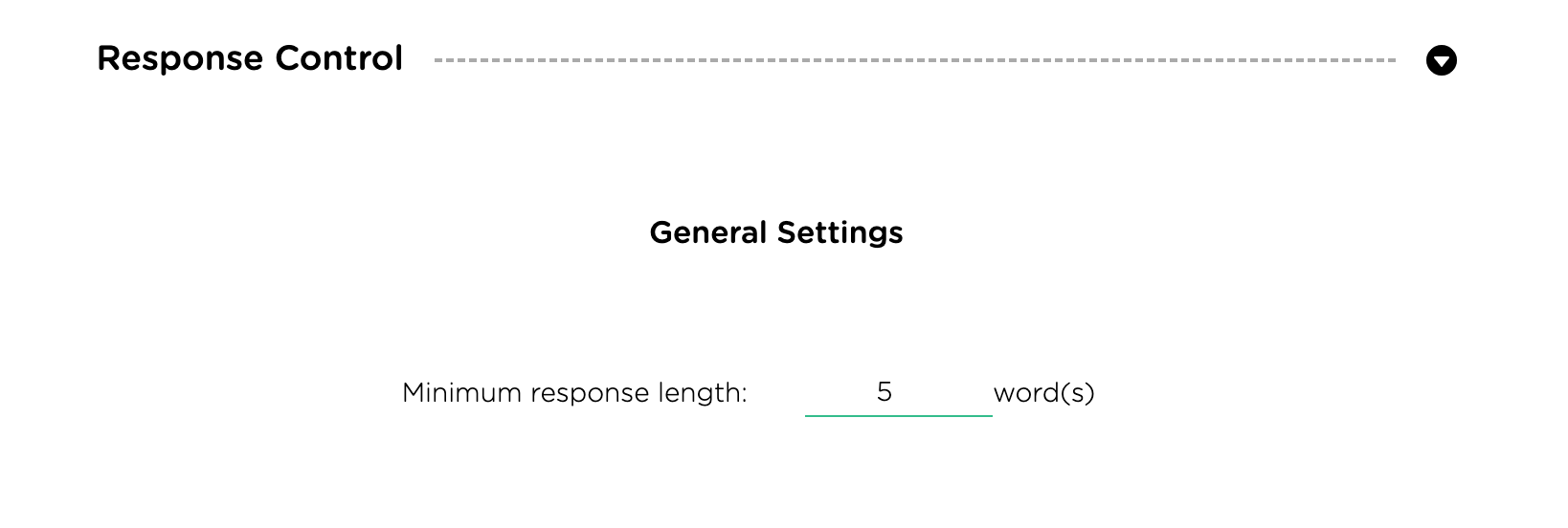
Minimal response length
This is a short cut for you to control the minimal number of words a user must provide to an agent request. This parameter sets the default for all questions in your agent. You can customize the response length for a specific chabot question/request in the Topic Settings (see customize topic settings.
Handling unknown user input
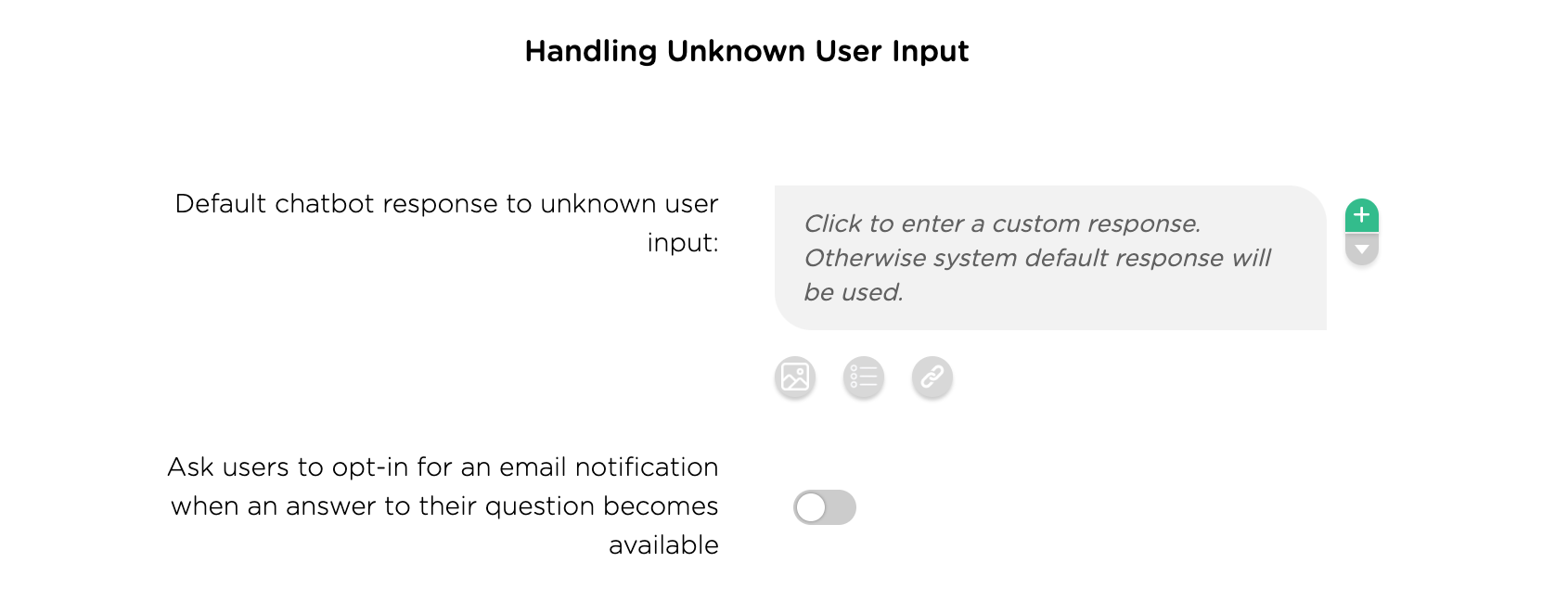
This section allows you to control an agent's behavior when the agent does not recognize a user question or input. Currently, Ascent provides several options for you to handle such a situation.
-
Provide a default message. Ascent has a built-in message to handle this. You can enter a custom message here to suit your context, e.g., providing a URL, an email, or a phone number to access a human agent.
-
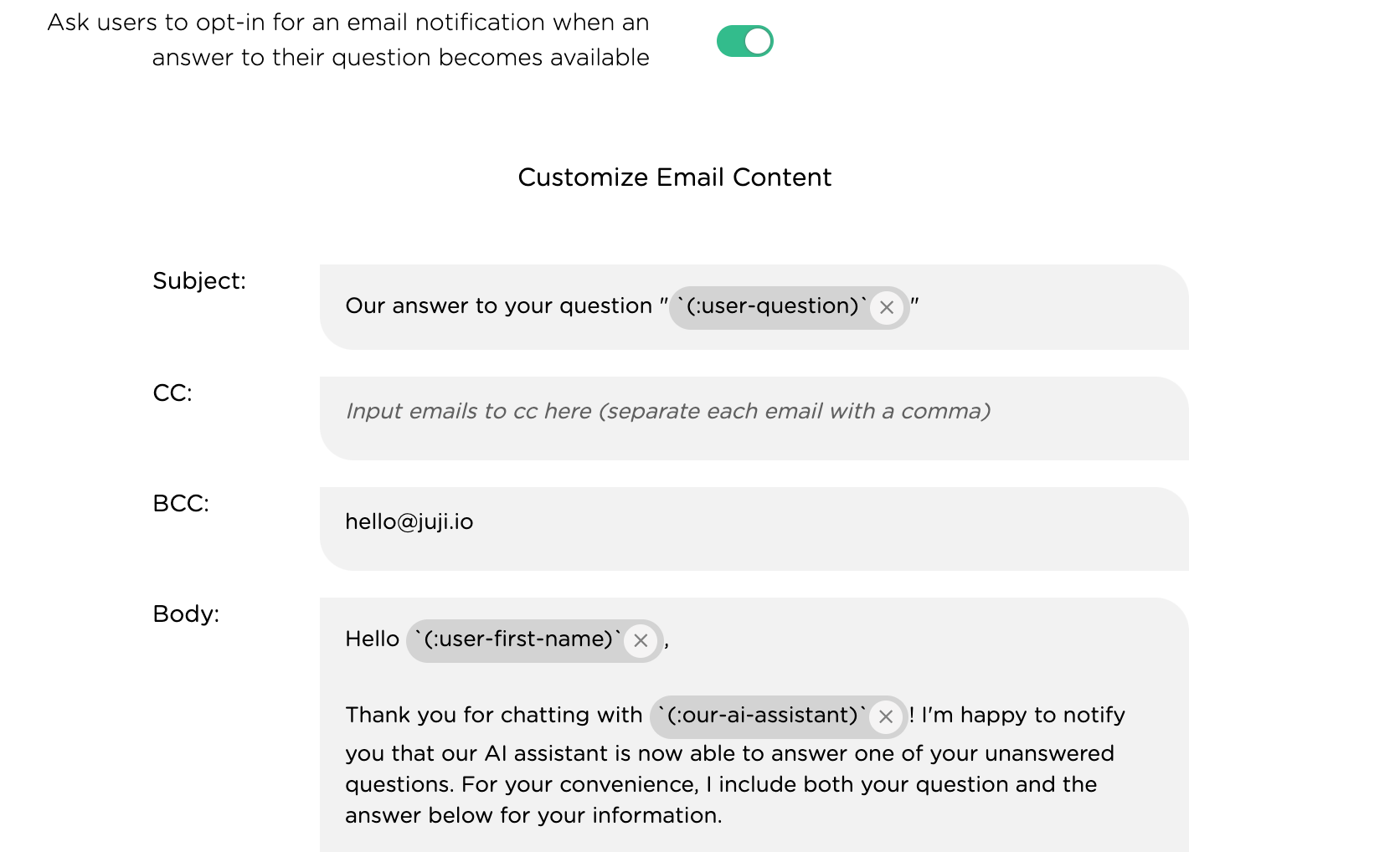
Provide email notification. If you enable this function, your agent will automatically elicit an email address, first name, and last name from a user when it cannot answer a user's question. It will then automatically email the question along with the answer to the user once the answer becomes available (e.g., an answer is submitted via the Q&A board).
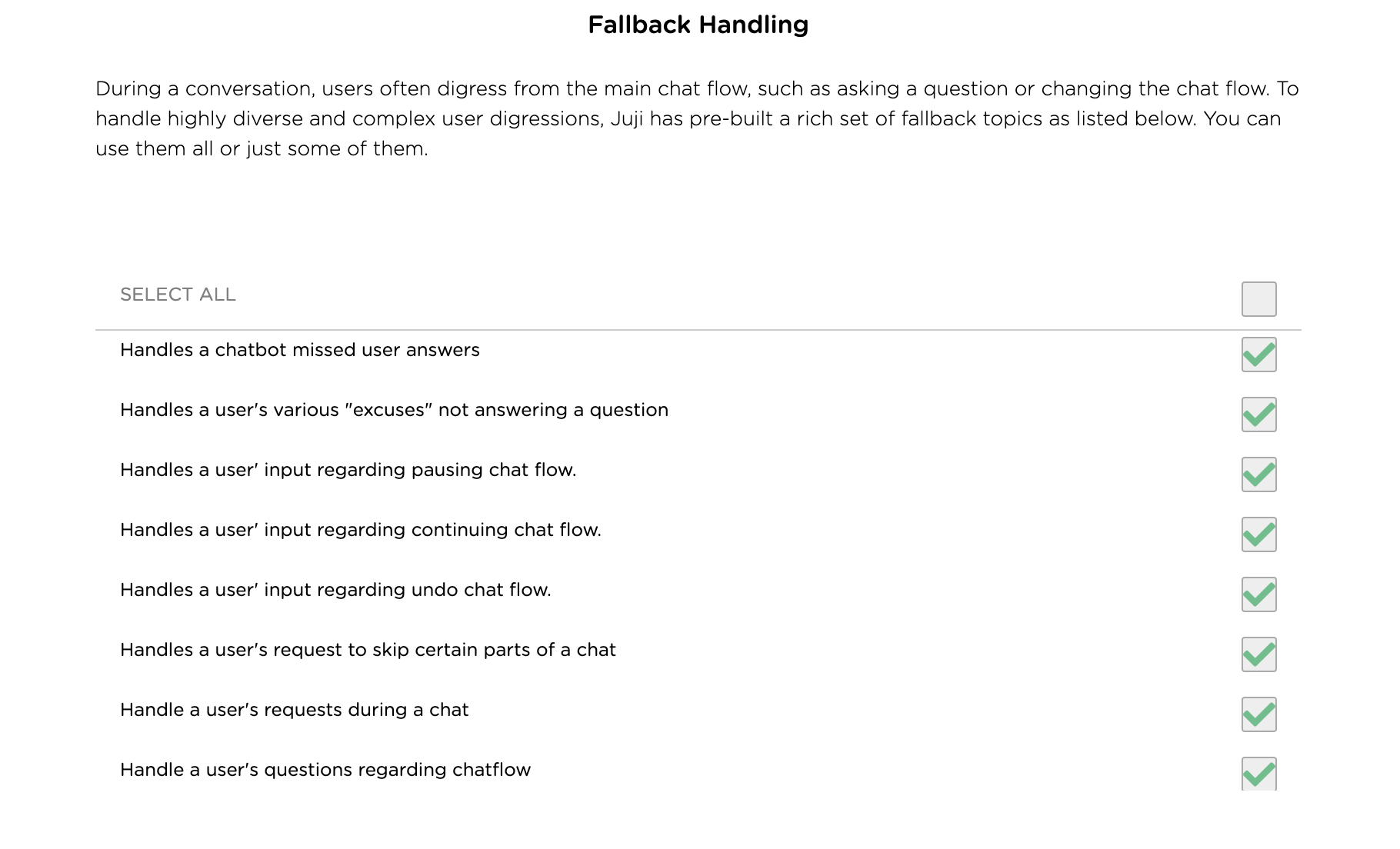
Fallback handling
This allows you to control what kind of fallback handling is desired for your agent. Ascent provides a rich list of fallback handling functions to manage user input that is outside of your agent script. From our experience, users often deviate from your agent script and start a side talkng. These fallback handling functions enable your agent to handle user-initiated side talking gracefully and also keep the chat on track.
Collaboration Notes
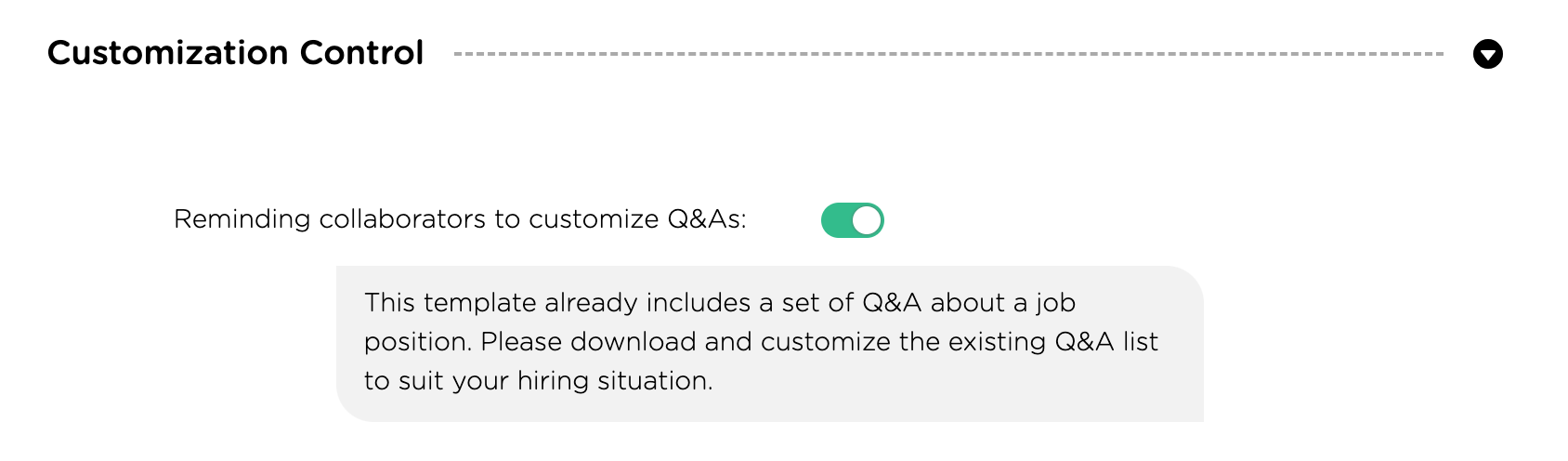
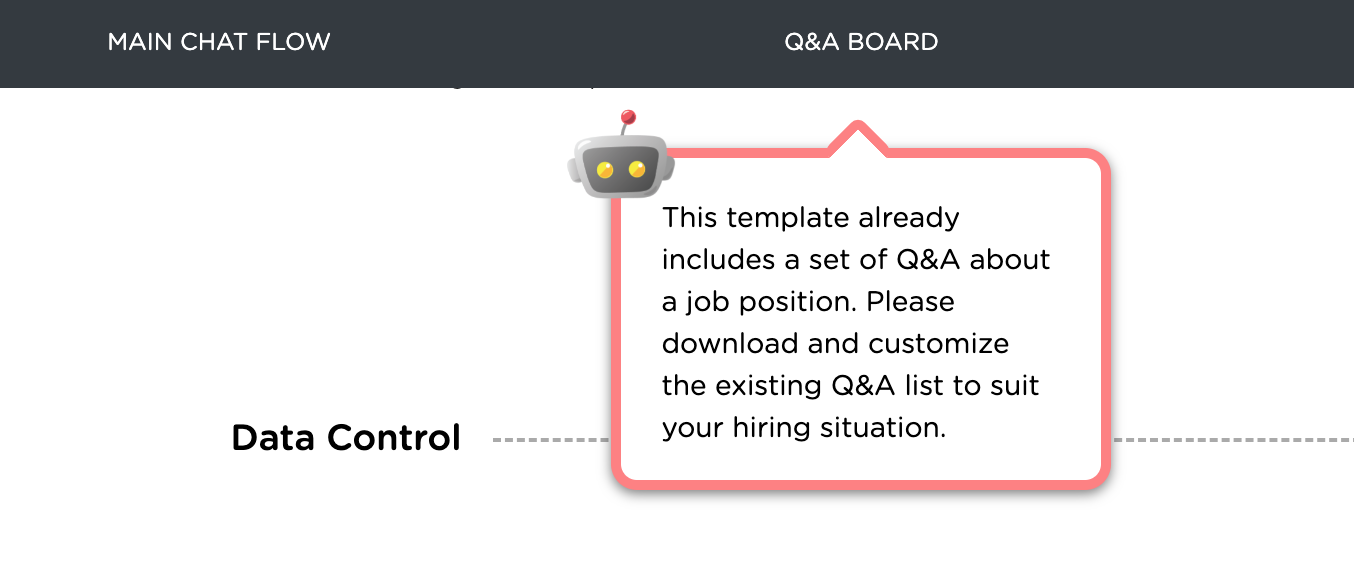
In a situation where multiple people may co-design an agent, one can leave a note for each topic or the overall Q&A settings so their colleagues can understand the rationale of the design. In this section, one can customize the messages regarding the Q&A set up. The note will appear as a bubble next to the "Q&A board".
What's Next
Once an agent is ready, you can deploy it onto a website or a Facebook page. Please check out agent Deployment to deploy your AI agent. If you wish to further customize your agent, such as its main chat flow or capabilities to handle QnA, you can continue doing so.